Organization settings
Your organization's details, equipment categories and setup rules.
Admins manage the organization under Settings, in the Organization group: organization details, members, billing, setup rules and the recycle bin.
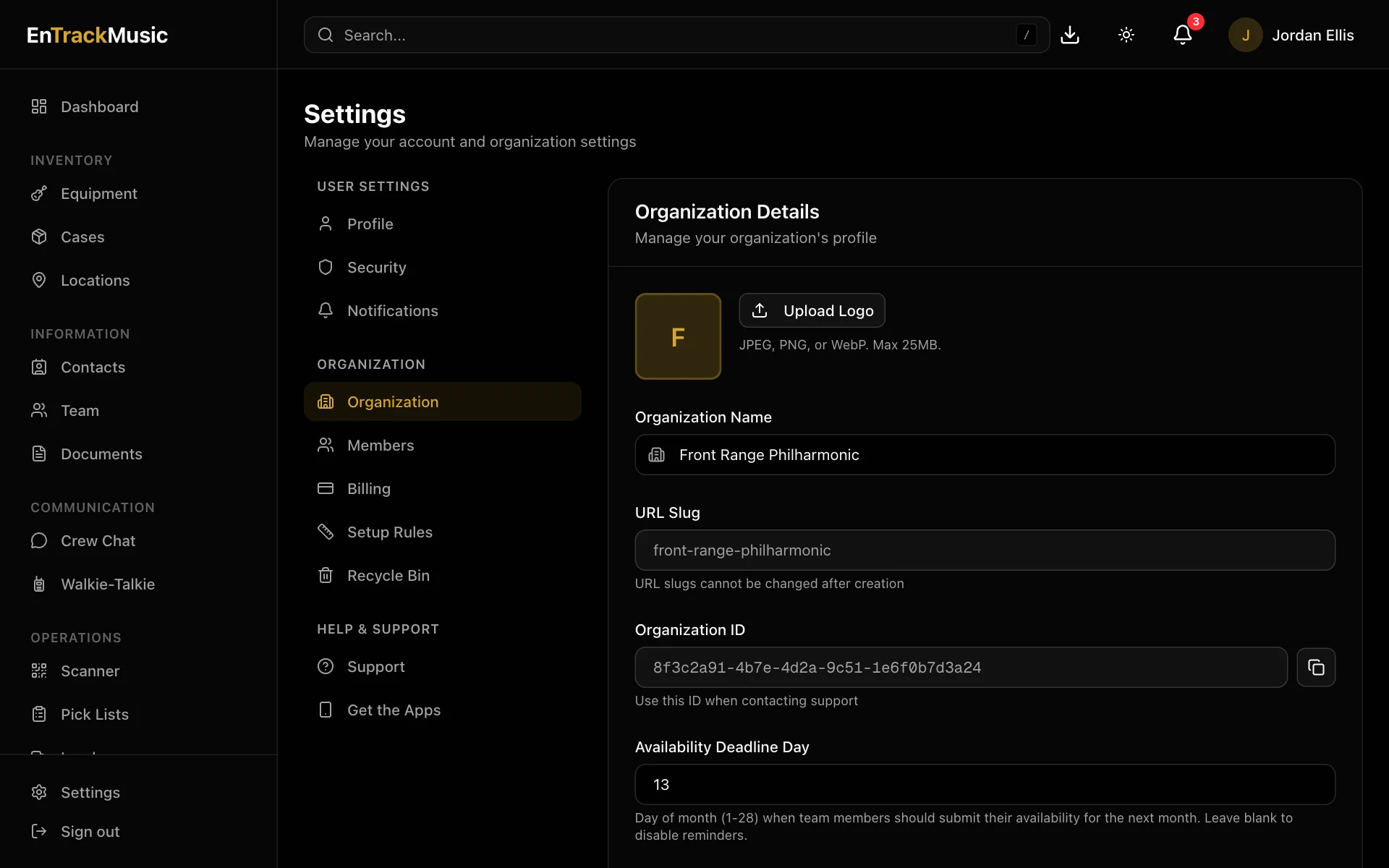
Organization details
Under Organization:
- Logo: shown in the app and on printed labels.
- Organization Name.
- Availability Deadline Day, time and time zone: when everyone's availability for the next month is due. See Availability.
- Organization ID: copy it when you contact support.
Equipment categories
Further down the same page, Equipment Categories organize your gear, each with an emoji and a colour. Choose Add Category to create one, like Percussion 🥁. Each category shows how many items use it. You can't delete a category while equipment uses it.
Members
Members is the same as the Team page: invite people, change roles and remove members. See Getting started.
Setup rules
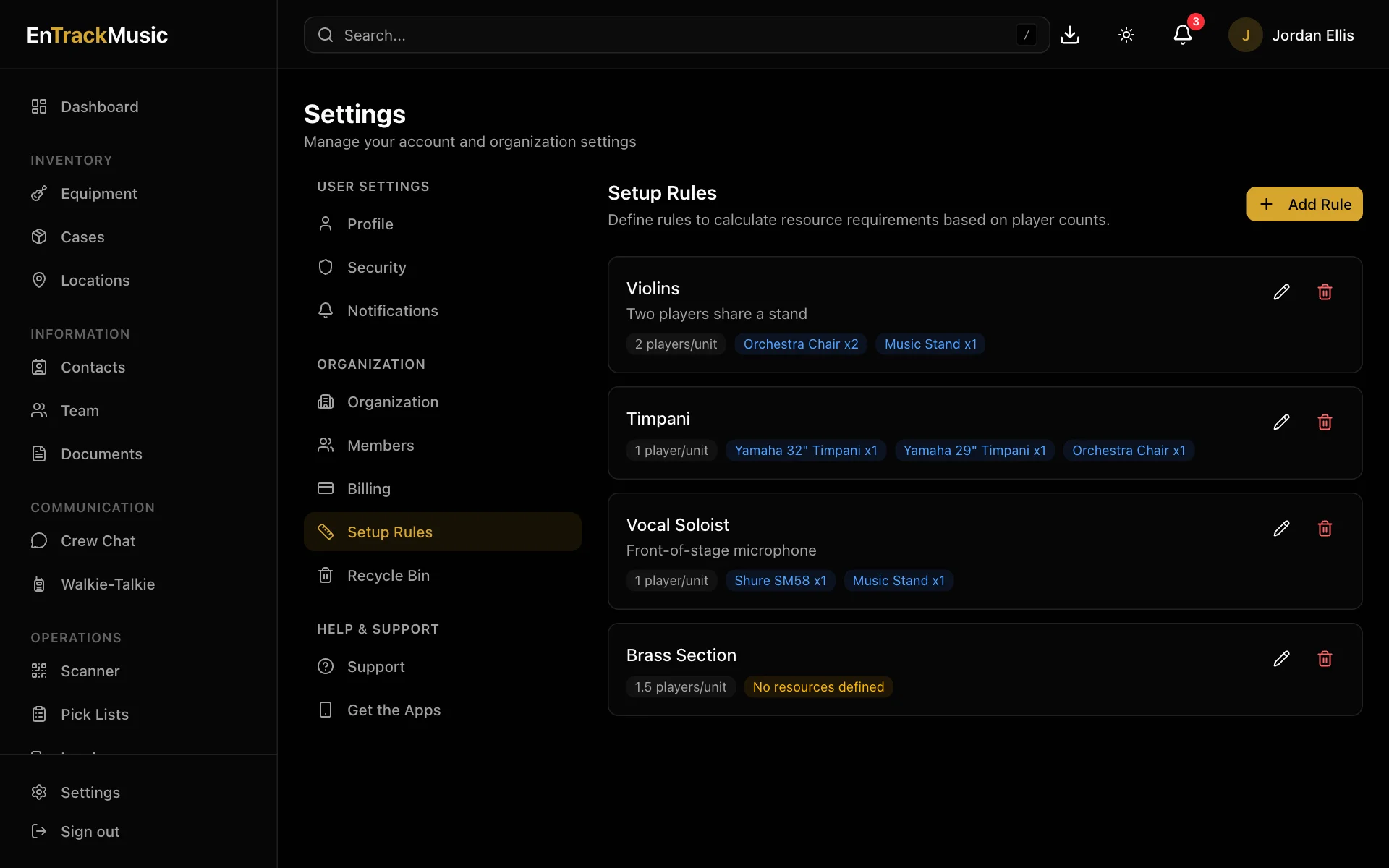
Setup rules turn player counts into the gear they need. For example, Violin section: per player, one chair and half a music stand. Ops plans and stage plots use them to work out what to load.
Under Setup Rules, choose Add Rule. Give it a name, the number of Players per Unit, and the Resources per Unit: which equipment, and how many. Under Stage Plot Icons, choose which stage plot symbols count toward the rule. Setup rules need the Pro plan.
Delete the organization
At the bottom of Organization, under Danger Zone, choose Delete Organization and type its name to confirm. Everyone loses access straight away. It's permanently deleted after 30 days; until then, contact support to restore it.
Still stuck? Contact us and we'll help.