Ops plans
Plan an event: crew, roles, timeline, setup, tasks and the gear that has to get there.
An ops plan is everything about one event in one place: when and where it is, who's working, the day's timeline, the setup, the gear that has to get there, and the tasks that make it happen. Crew open it to see their call time and tick off their jobs. Admins use it to plan the event and generate the pick list.
Ops plans need the Pro plan or higher.
Find your ops plans
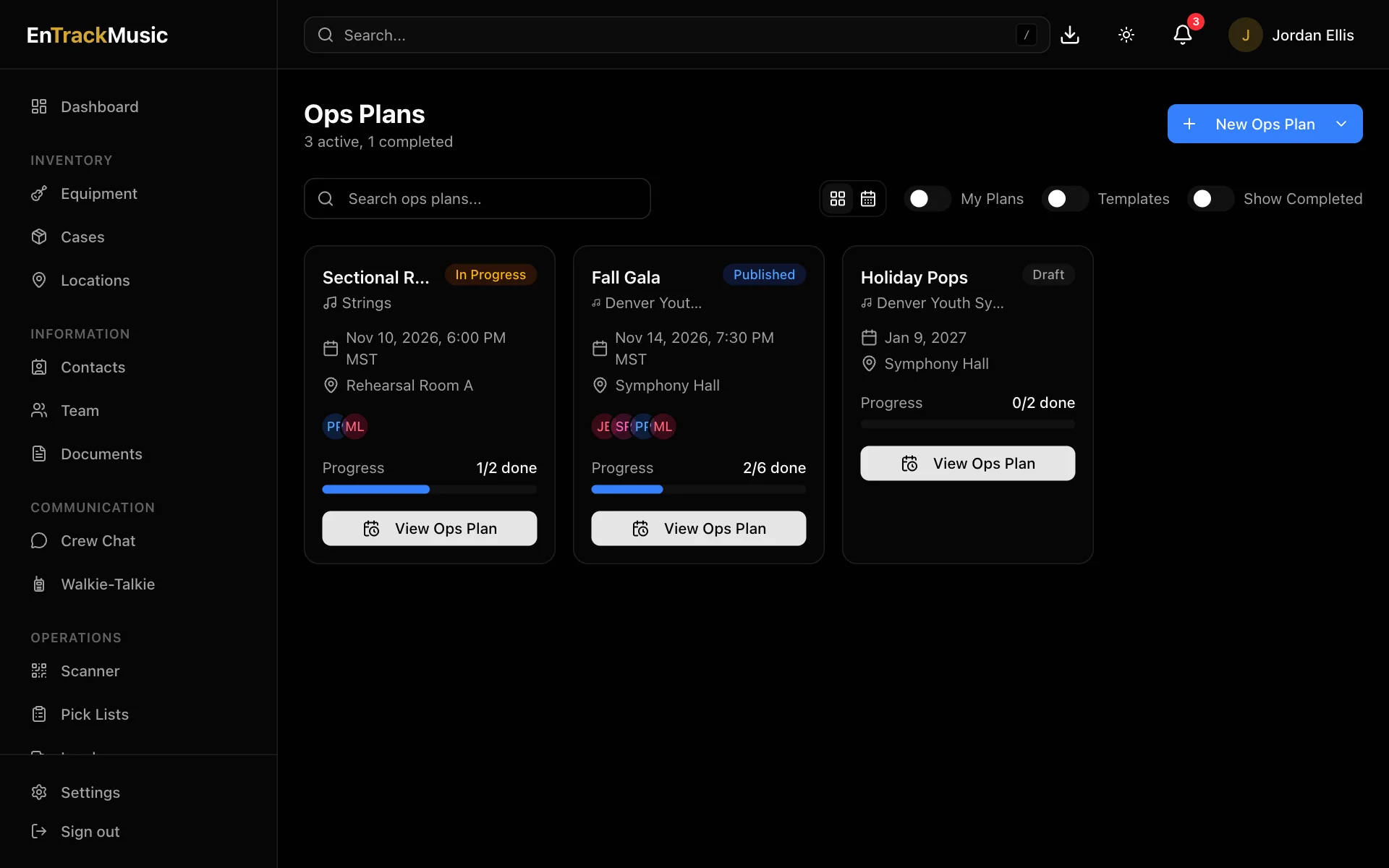
Go to Ops Plans. Each card shows the date, venue, crew and progress. Turn on My Plans to see only plans you're working, or Show Completed to include past events. The calendar button shows plans by month, week or day.
Open a plan
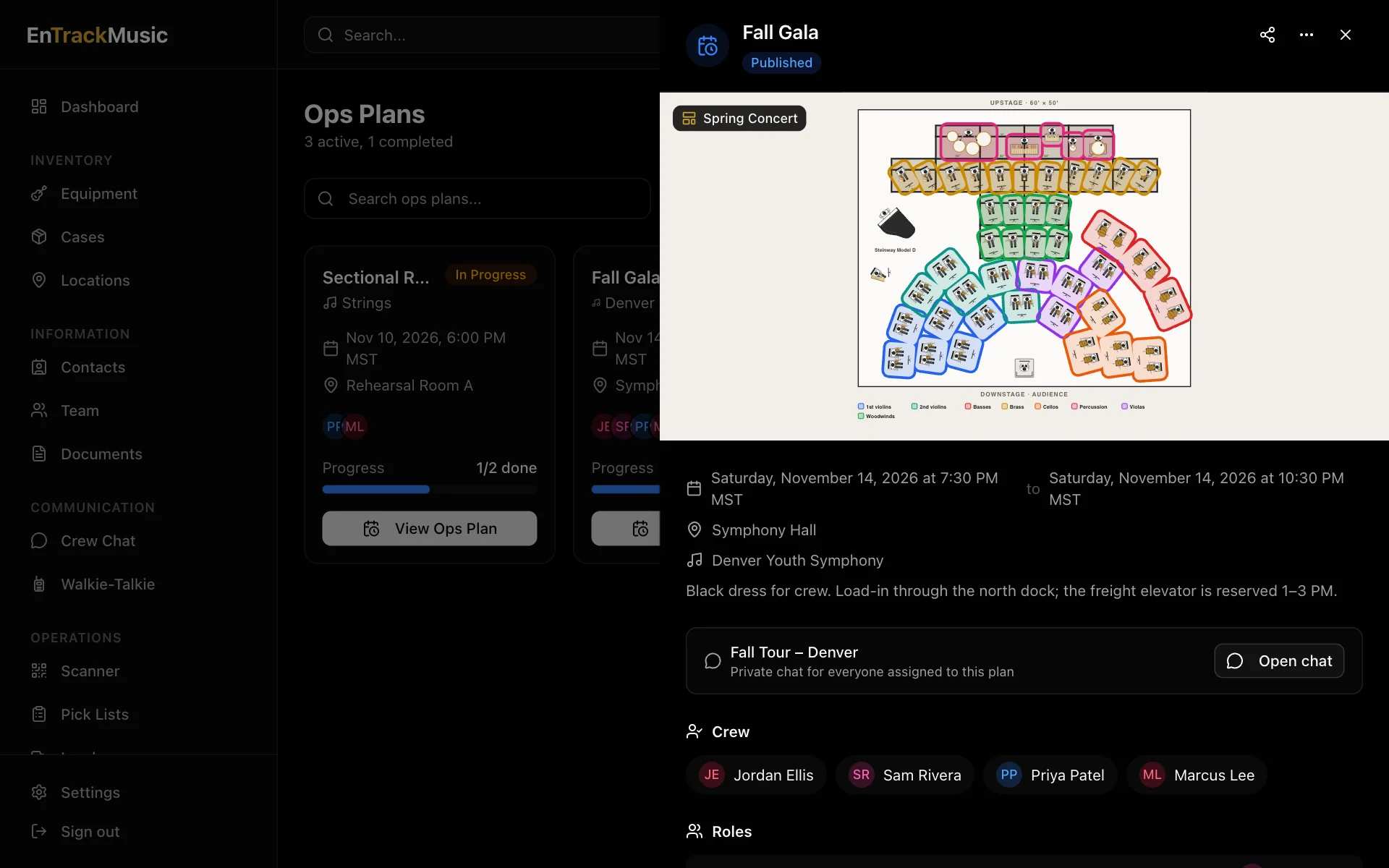
A plan reads from top to bottom like a run sheet:
- The basics: date and time, venue, ensemble, notes, and the stage plot if there is one.
- Crew and Roles: who's working and who's doing what, like stage manager or librarian, with the documents each role needs.
- Timeline: call times and cues for the day, each with who's responsible.
- Line item tasks: the jobs to get done, grouped by section. Pick lists and loads in the plan tick themselves off when they're finished.
- Setup / Resources: how many players are in each section and what that adds up to in chairs, stands and gear, compared with what's at the venue.
- Files, Documents, Comments and History.
Tick off your tasks
Tick a line item when it's done. The progress bar updates for everyone, and the plan moves to In Progress. When every item is done, or someone chooses Mark as Complete, it moves to Completed.
Admins only
Create an ops plan
Choose New Ops Plan, then:
- Blank Plan to fill everything in,
- Quick Add for just a title and date (you can also click a date in the calendar), or
- From Template... to start from a plan you've saved.
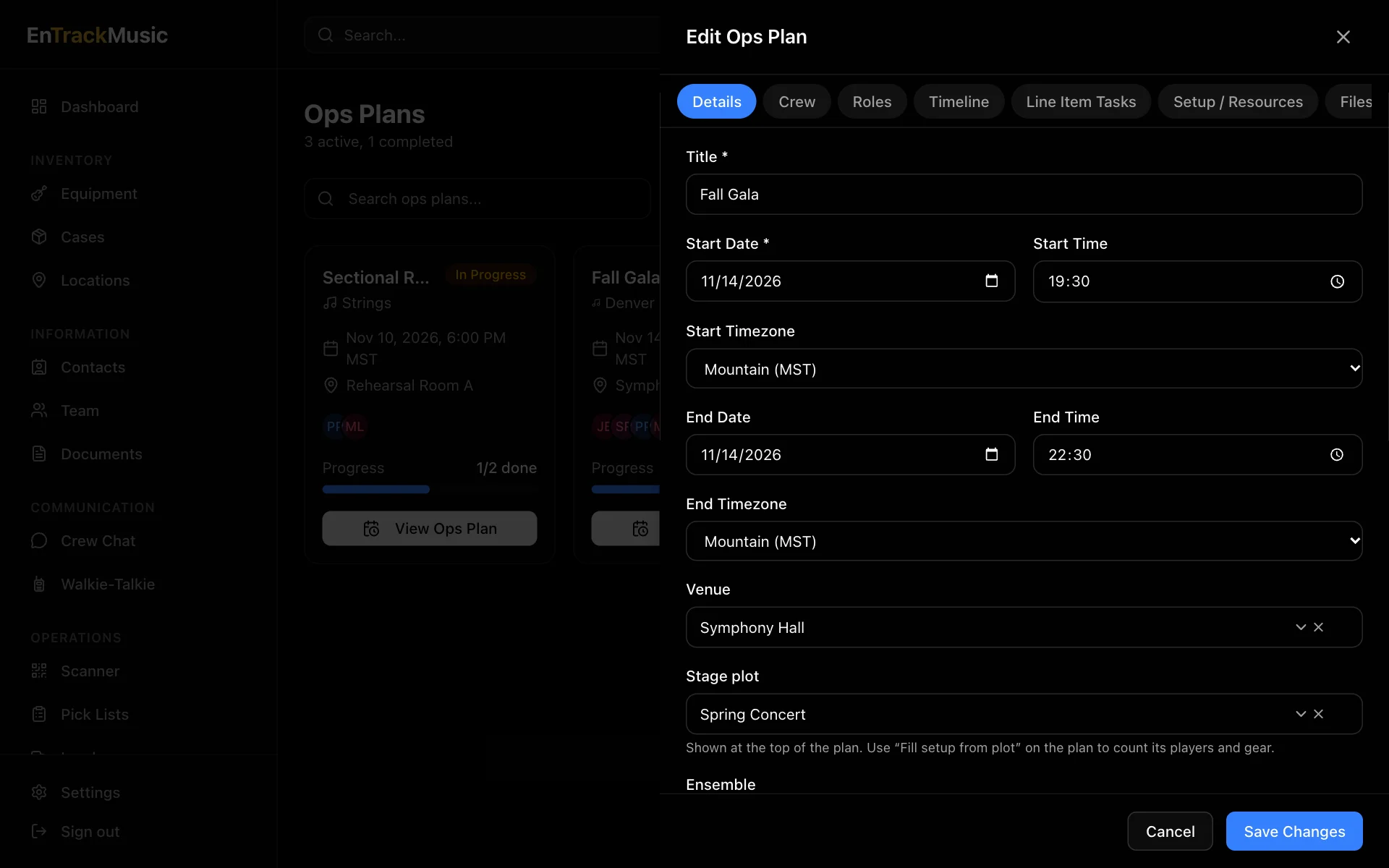
The plan form has a tab for each part:
| Tab | What goes in it |
|---|---|
| Details | Title and start date (required), times and time zones, end date, venue, stage plot, ensemble and notes. |
| Crew | Who's working. Once there's a start date, each person shows whether they're Available, Partial, Unavailable or Not Submitted, from their availability. |
| Roles | Jobs like Stage Manager, with the people and documents for each. |
| Timeline | Times, labels and who's responsible. |
| Line Item Tasks | Pick lists, loads or plain tasks, each with a section, an assignee and documents. |
| Setup / Resources | Orchestra sections (a setup rule and how many players) and any additional gear. |
| Files | Photos and documents. The first photo is the plan's header image. |
Publish it
A new plan starts as a Draft, which you can keep working on. When it's ready, choose Publish on the plan. Everyone on the crew gets a notification.
Fill the setup from a stage plot
If the plan has a stage plot, choose Fill setup from plot. It counts the players and gear on the plot, so you don't have to enter them. You can also do this from the stage plot itself, with Use in an ops plan.
Generate the pick list
Once the plan has a venue, choose Generate Pick List. It lists everything in the setup that isn't at the venue yet. Create a new pick list from it, or add it to one you already have. See Pick lists.
Give the plan a chat
On the Enterprise plan, choose Create chat channel to start a private crew chat for everyone on the plan.
Templates
Choose ⋯ and then Save as Template to reuse a plan's timeline, tasks, setup and files without its people. Turn on Templates on the list to see them, and choose Use Template to start a new plan from one. Apply Template on an existing plan replaces its timeline, tasks, items, files and photos, but keeps its crew and roles.
Duplicate makes a draft copy of the plan, and Delete moves it to the recycle bin for 30 days.
Still stuck? Contact us and we'll help.