Crew chat
Message your whole crew, a group, or everyone on an event.
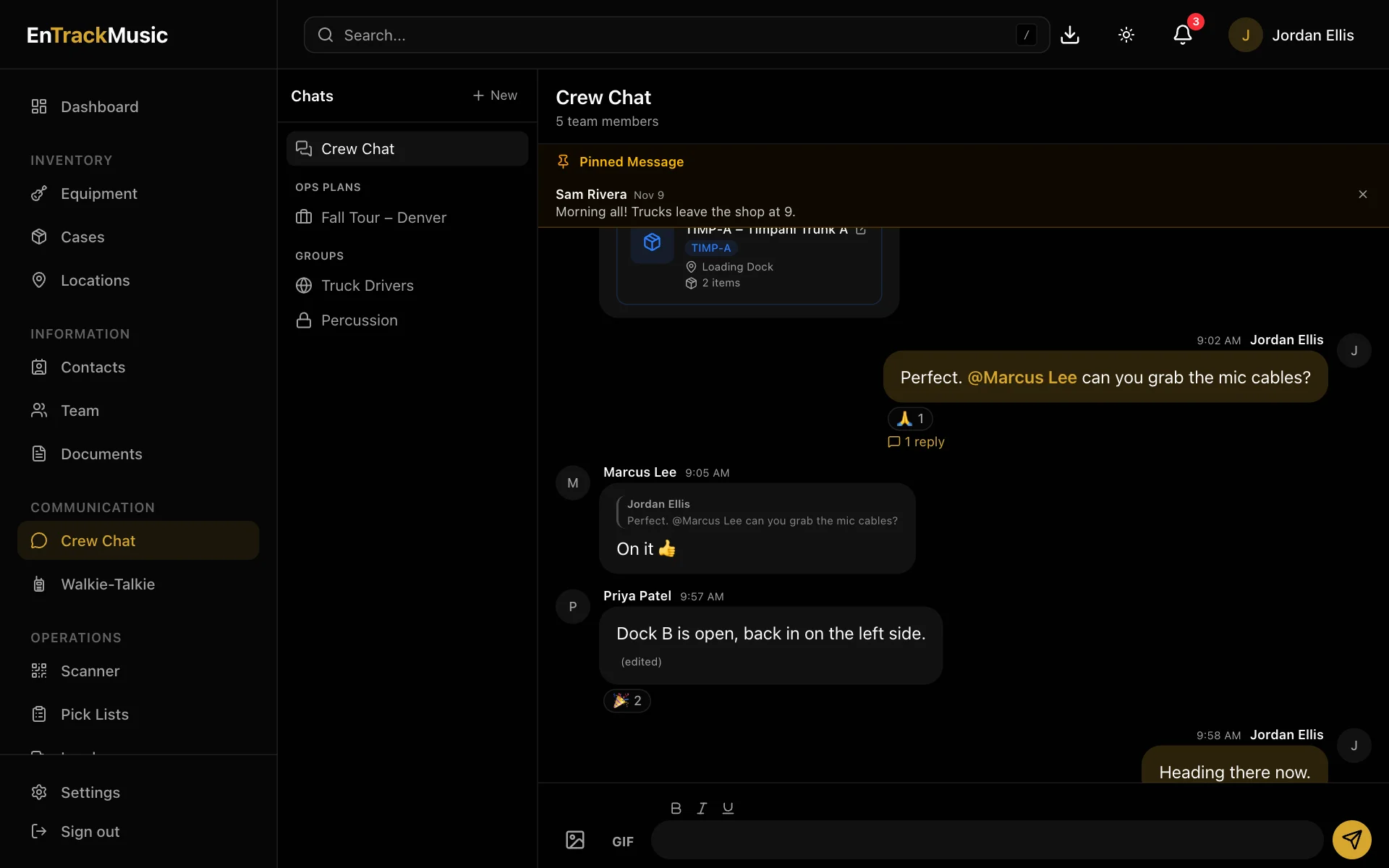
Crew Chat keeps your team's conversations next to the gear they're about. Everyone shares one organization-wide channel, and you can start group chats for a section, a truck crew or an event. Ops plans can have their own private chat.
Crew Chat needs the Enterprise plan or higher.
Channels
Choose Crew Chat in the menu. The channel list shows:
- Crew Chat, which everyone in your organization is in.
- Ops plans: private chats for the people working an event.
- Groups: chats you've started or joined. 🔒 means private (invite only) and 🌐 means public (anyone can join).
Public channels don't appear in your list until you join them. Choose Join (the compass button on the web and Android, the speech bubble with a plus on iPhone) to see the public channels you're not in. Open one to read it first, or choose Join to add it to your list, post in it and get its notifications.
Mute or leave a channel
To quiet a group or ops plan channel without leaving, mute it: on the web open the channel's Settings (the gear) and pick how long under Mute; on iPhone swipe the channel left or touch and hold it; on Android touch and hold it. A muted channel shows a crossed-out bell and stops sending you notifications. If someone @mentions you by name, you'll still hear about it.
To leave, choose Leave channel in the same place. You can join a public channel again from Join; for a private one, someone in it has to add you back. If you're the only owner, make someone else an owner first (or archive the channel). Crew Chat is the whole organization's channel, so you can't leave it; set its notifications in Settings → Notifications.
A number on a channel means messages you haven't read.
Send messages
Type in the box at the bottom and press Enter (Shift+Enter for a new line).
- Mention someone: type
@and choose a name.@everyonenotifies the whole channel. - Link gear or plans: type
/and choose what to link: equipment, cases, locations, pick lists, loads, ops plans, documents, files or contacts. It shows as a card people can tap. - Photos and GIFs: use the image and GIF buttons.
- Format text: use the bold, italic and underline buttons.
Hover over a message (or long-press on a phone) to react with an emoji, reply in a thread, edit or delete your own message, or pin it to the top of the channel. Pinning needs an admin.
Start a group chat
Choose New
Choose + New above the channel list.
Set it up
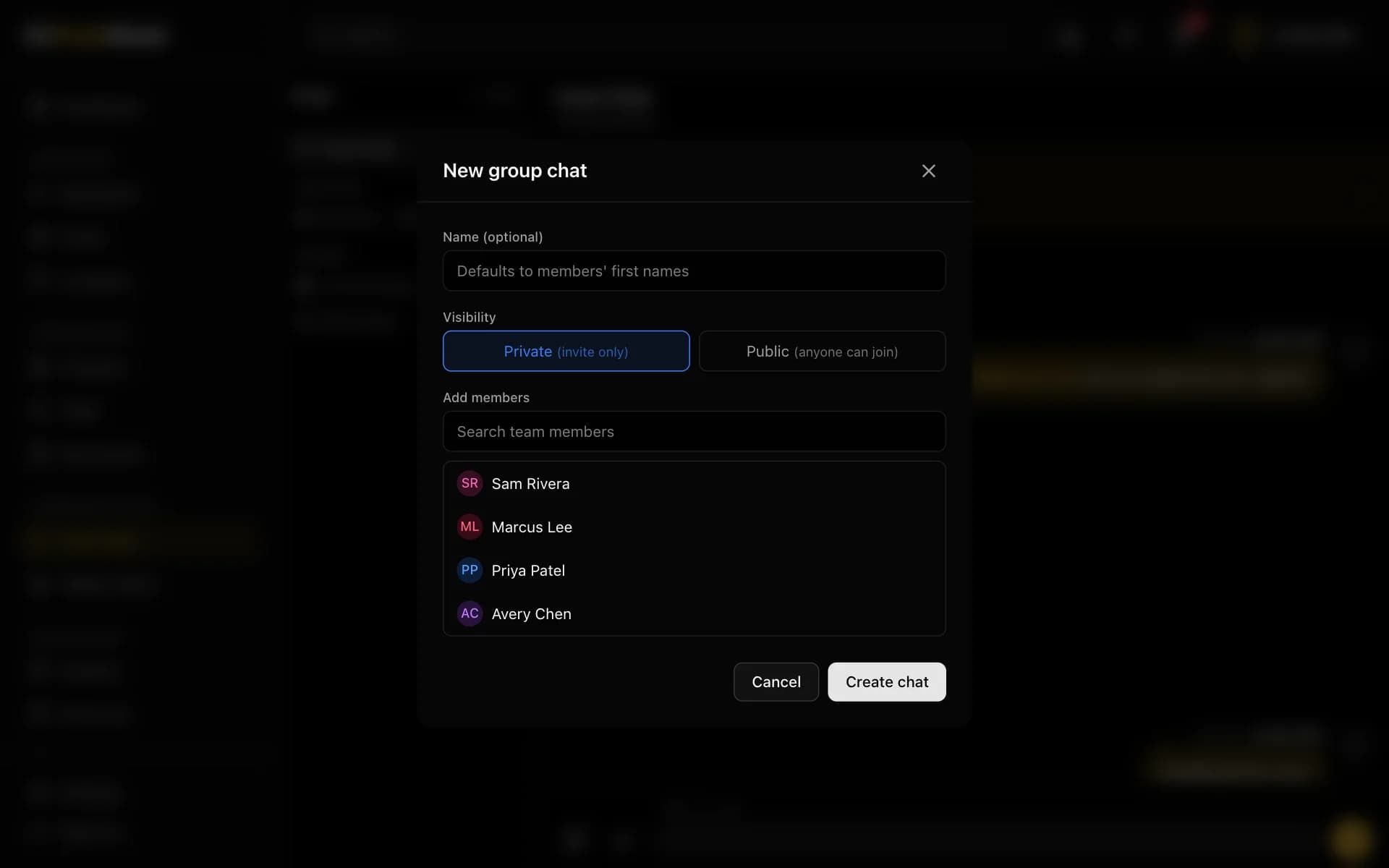
Give it a name (or leave it to use everyone's first names), choose Private or Public, and add people. Then choose Create chat.
A public chat only appears for the people you add. Everyone else finds it under Join.
Choose the ⚙️ button on a group to see its members, add people, leave, or (if you started it) rename or archive it. In the iPhone and Android apps, tap the people button at the top of the chat, or press and hold the group in your chat list and choose Members.
Who can add people: in a private chat, its owners and admins. In a public chat, anyone in it. Owners and admins can also remove people and make someone else an owner.
Admins only
Chat for an ops plan
Open an ops plan and choose Create chat channel. It makes a private channel named after the plan, with everyone working it already added. Open chat on the plan jumps straight to it.
Notifications
You're notified when someone mentions you, and (unless you turn it off) for every new message in your channels. Change this under Settings → Notifications. See Notifications.
Still stuck? Contact us and we'll help.