Notifications
Choose what you're notified about, by email and on your phone.
EnTrackMusic lets you know when something needs you: a pick list you're on, someone mentioning you, an ops plan going live, or availability coming due. Notifications show in the app, and can also come by email and as phone notifications.
See your notifications
Choose the 🔔 at the top of any page. A number means unread notifications. Choose one to open what it's about, or Mark all read.
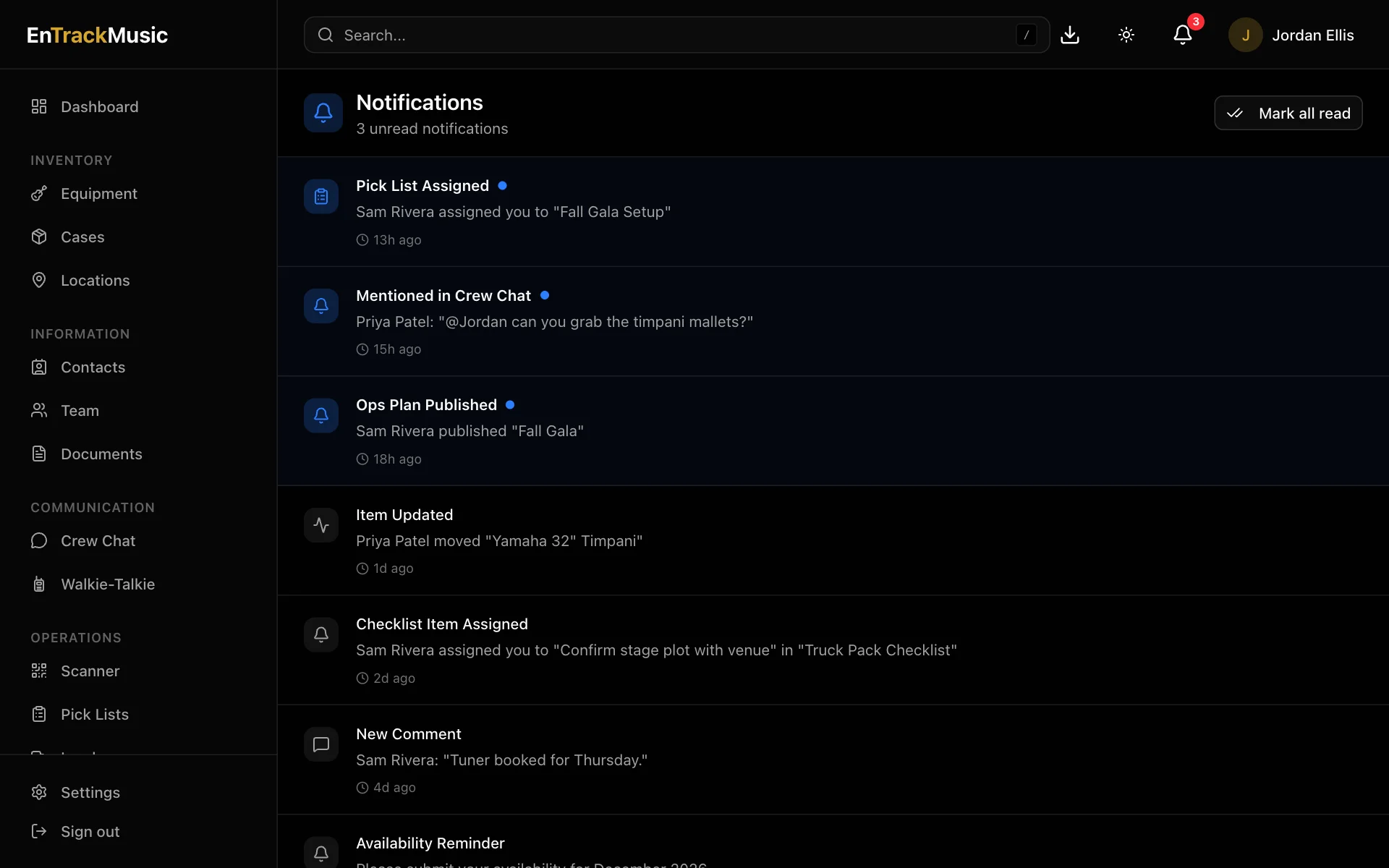
What you'll be notified about
| Notification | When |
|---|---|
| Pick list assignments | You're assigned to a pick list |
| Followed item activity | Something you follow is moved or changed |
| Mentions in comments | Someone @mentions you in a comment |
| Mentions in crew chat | Someone @mentions you in chat |
| All crew chat messages | Any new message in your chat channels |
| Ops plan published | An ops plan you're on is published |
| Checklist assignments | You're given a checklist item in a document |
| Availability reminders | Your availability is coming due |
| Upcoming due dates | A pick list you're on is coming up |
Admins only
Admins can also choose All comments, to hear about every comment in the organization.
Choose how you're notified
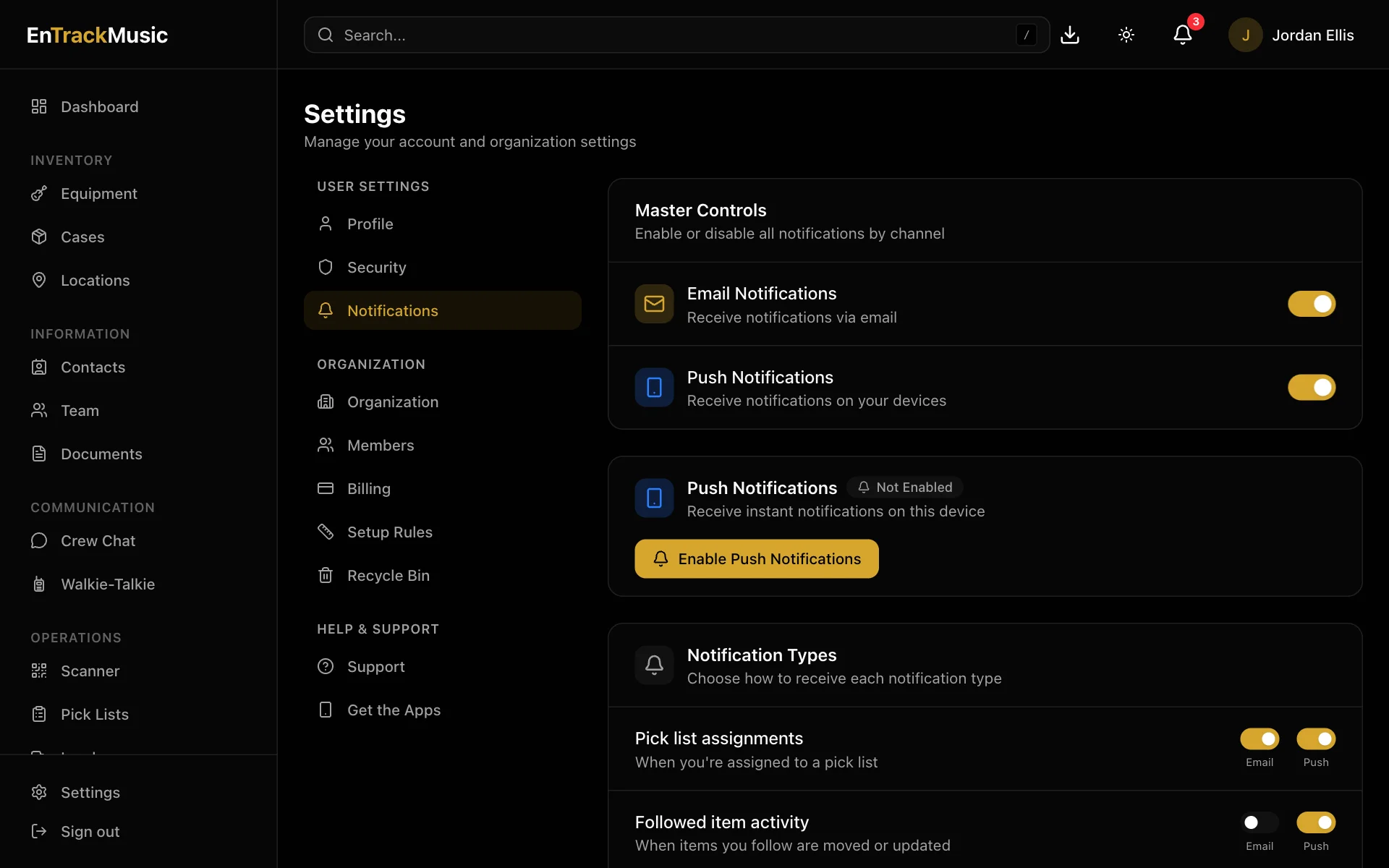
Go to Settings → Notifications.
- Master Controls turn all email or all push notifications on or off.
- Notification Types let you choose email and push for each kind separately.
- Due Date Reminder Timing sets how far ahead you hear about due pick lists: 24, 12, 6, 3 or 1 hour before.
Phone notifications
In the iPhone and Android apps, allow notifications when asked. If you said no, turn them on in your phone's Settings → EnTrackMusic. On a computer, choose Enable Push Notifications in notification settings to get them in your browser.
Follow equipment and cases
Choose the 🔔 on any equipment or case to follow it. You'll be notified whenever it's moved or changed. Turn on Auto-follow all items in notification settings to follow everything.
Still stuck? Contact us and we'll help.