Stage plots
Draw to-scale stage layouts on top of the venue's own drawing.
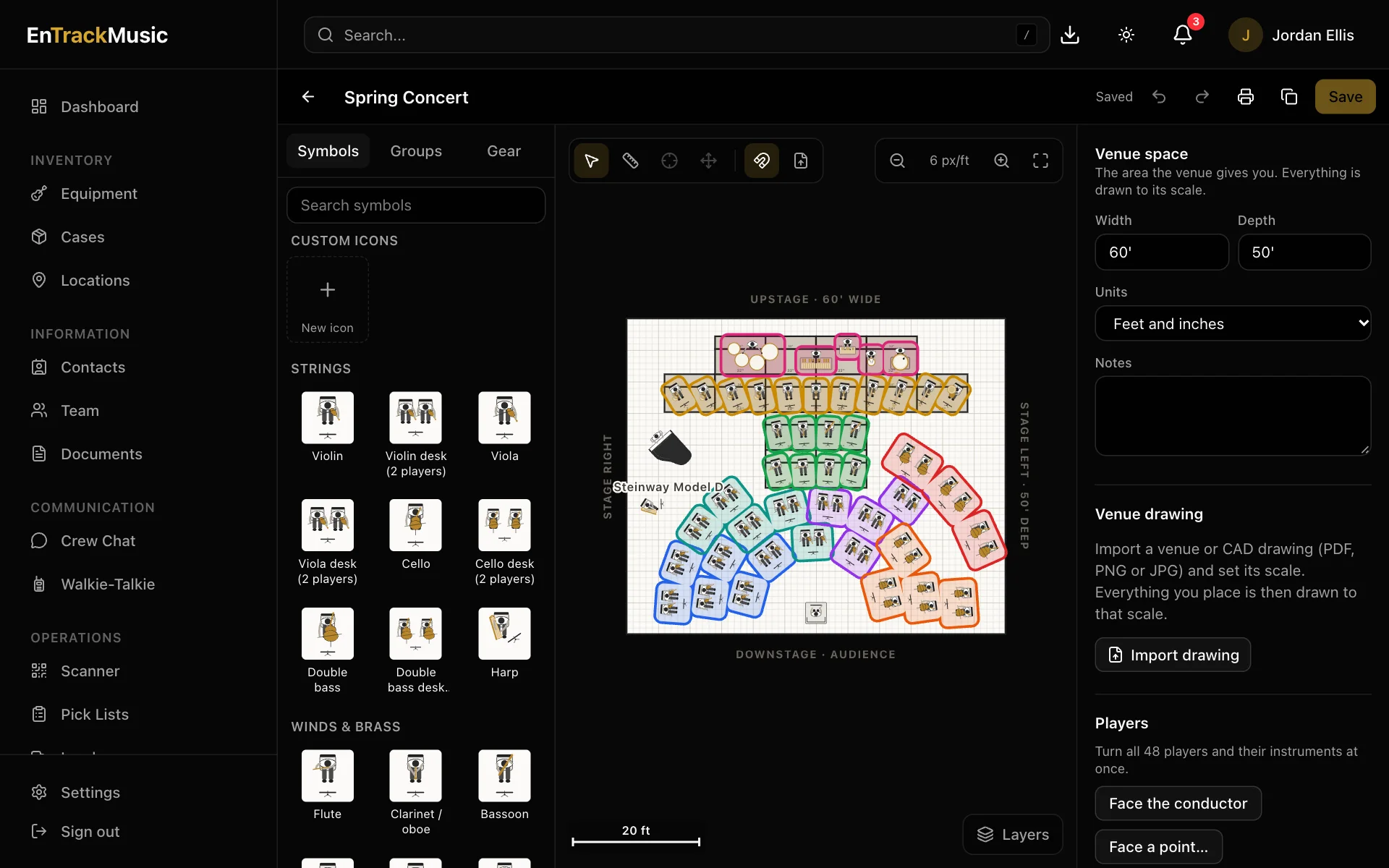
A stage plot is a to-scale drawing of your setup: where every player, chair, stand, instrument, deck and monitor goes. Everything is drawn at its real size, so if a plot fits on paper, it fits on the stage. Import the venue's own drawing underneath and everything lines up with the real room.
Stage plots need the Pro plan or higher.
Admins only
Create a plot
Start a new plot
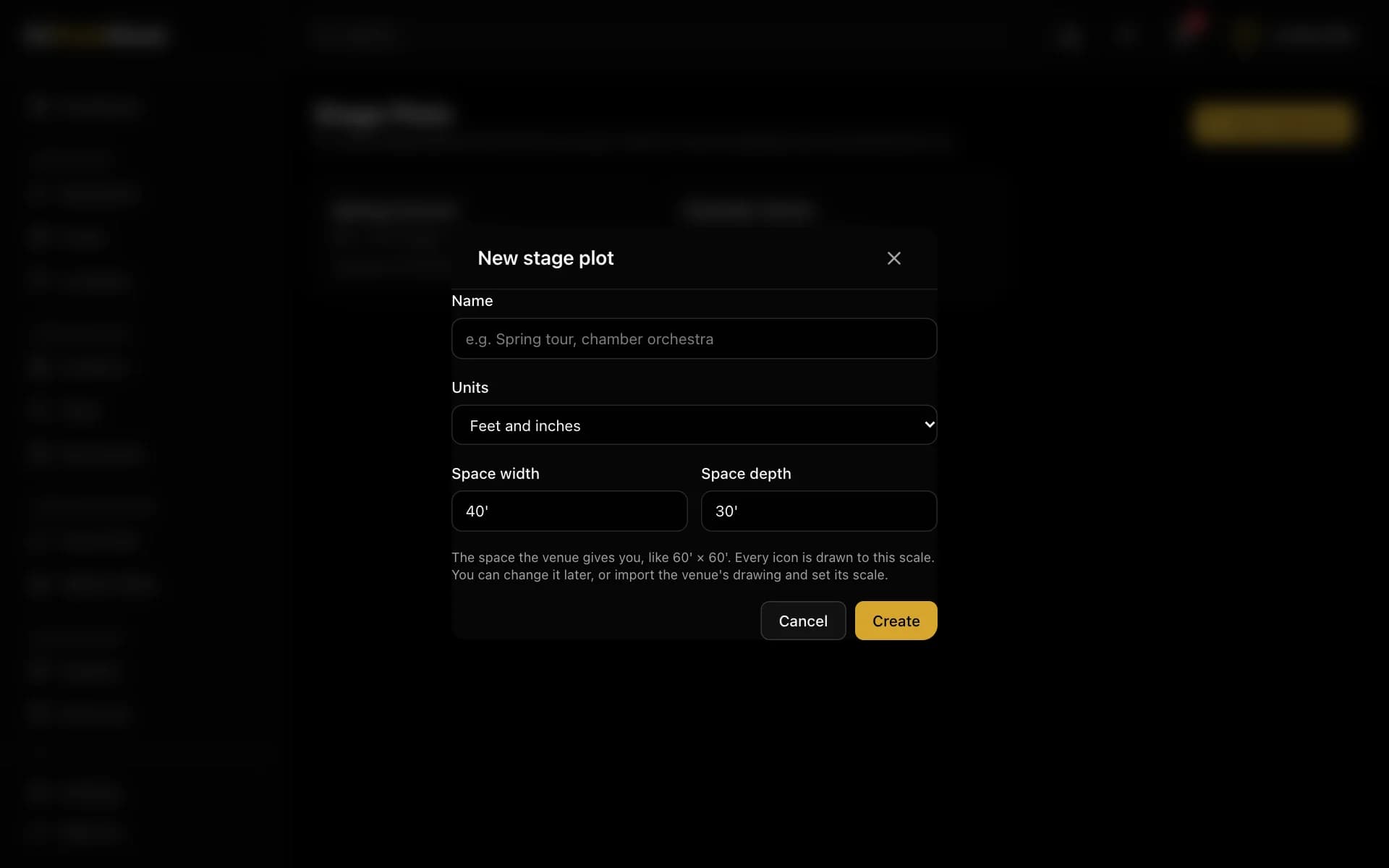
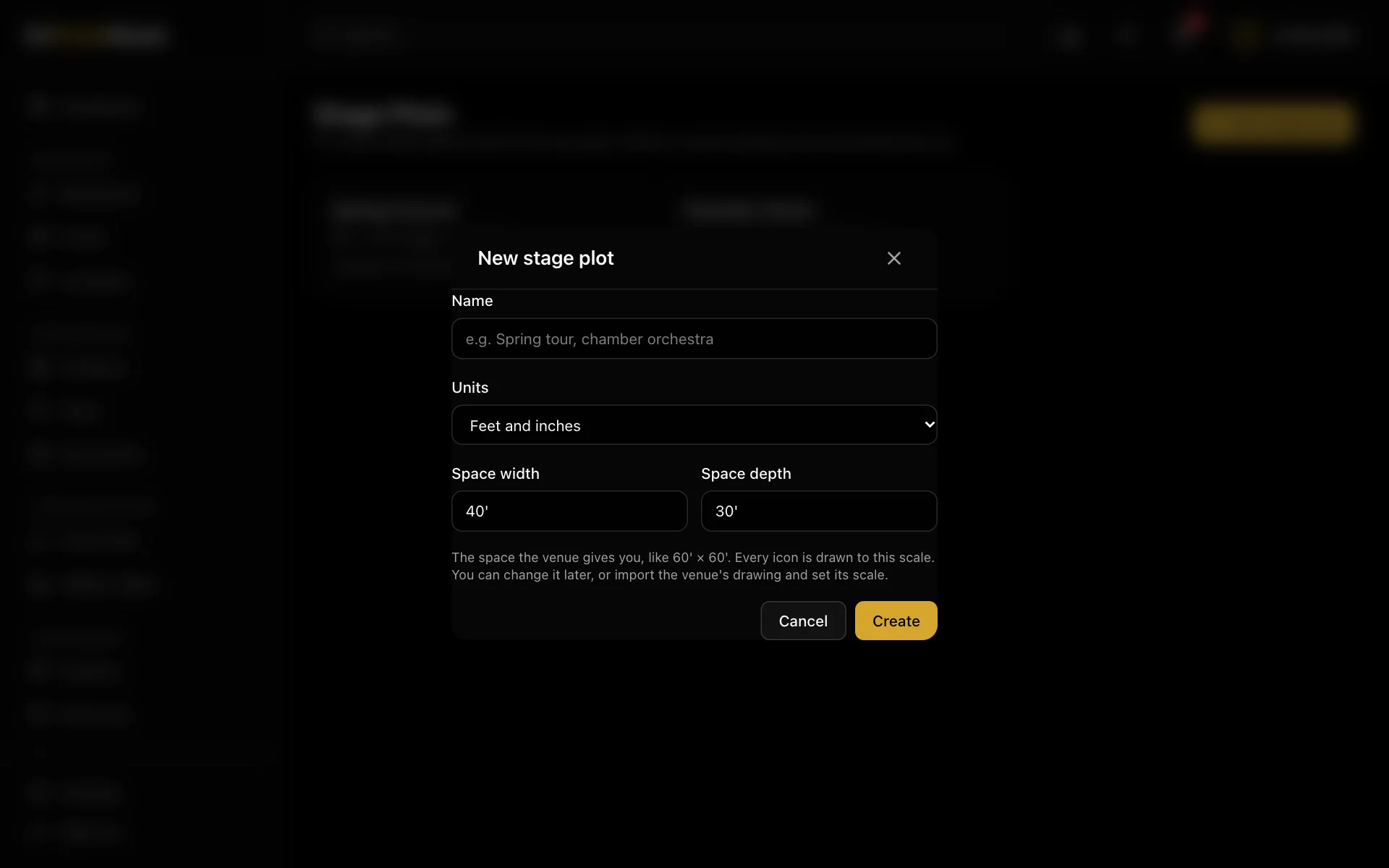
Go to Stage Plots and choose New stage plot. Give it a name, choose feet or metres, and enter the space the venue gives you, like 60' × 40'. If you've saved this venue's drawing before, choose it under Venue drawing and the size fills in for you.
Add players and gear
Choose from the Symbols palette on the left. It's grouped into strings, winds and brass, percussion, keys, people, band, audio and staging. String desks seat two players at one stand, and the conductor comes with a podium. The Gear tab adds your actual equipment and cases at their real footprint.
Arrange them
Drag to move. Drag the round handle to rotate (in 15° steps; hold Alt for any angle) and a corner to resize. Shift-click or drag a box to select several. Then turn them all with Face conductor, or Face a point… and click where they should look.
It saves itself
Changes save a couple of seconds after you stop. Choose Save to keep the current state as a numbered version, with an image and a PDF.
Decks and risers
The Staging symbols include 4' × 8', 3' × 8', 2' × 8', 4' × 6' and 4' × 4' decks, drum risers and custom sizes. Set each deck's height in the inspector. Players added while a deck is selected go on that deck, and moving a deck carries its players with it. Decks to build, in the panel on the right, lists every deck and its height, so you know what to bring.
Groups
Select players and press ⌘G to group them, like 1st violins. Give the group a name and a halo colour so it stands out. Double-click a group to edit inside it. Save to library keeps a group you can drop into any plot.
Handy keys
| Key | Does |
|---|---|
| ⌘S | Save a version |
| ⌘Z / ⌘⇧Z | Undo / redo |
| ⌘D | Duplicate |
| ⌘G / ⌘⇧G | Group / ungroup |
| R | Turn 90° |
| Arrow keys | Nudge 1" (hold Shift for 12") |
| Delete | Remove the selection |
Import the venue's drawing
Import it
With nothing selected, choose Import drawing in the Venue drawing panel. Use a PDF, PNG or JPG. For a CAD file (DWG), export a PDF from your CAD app first. For a PDF with several pages, choose the page with the stage.
Set its scale
Click both ends of something on the drawing whose real length you know, like the proscenium opening or an 8' deck, and enter that length. Everything you place now matches the drawing. If the PDF has a printed scale (like ¼" = 1'), you can choose that instead.
Line it up
Use Move the drawing, Rotation and Opacity to line the drawing up with your venue space, then Lock it so it can't be bumped.
Save it for next time
Choose Save to library to keep the drawing, already scaled and lined up, in your Venue drawings library. Link it to the venue's location, and any plot for an ops plan at that venue will suggest it. You can also start new plots on it.
Plots keep their own copy of a library drawing, so changing the library never moves an existing plot. If the library has a newer version, the plot shows Use latest version. If you've lined a drawing up better in one plot, choose Update library drawing to save that for everyone.
Share and use the plot
- Print: choose the printer button, pick how much to show (the venue space, the whole drawing, or a custom area) and choose Download PDF.
- Input list: choose the input list button to build the channel sheet for the sound engineers: channel, source, mic or DI, stand and notes (like 48V). Add from the plot adds a row for every vocal mic, instrument mic and DI box, in stage order. Reorder rows with the arrows; the order is the channel number. The list prints as its own page after the plot and shows on the public link.
- Share with a venue: choose the share button, enter an email address and choose Invite. They get their own link; opening it asks for a 6-digit code sent to that address, so a forwarded link won't work for anyone else. After that they can view the newest saved version, its PDF and the input list for 30 days on that device. The list shows who has opened their link; Revoke cuts someone off at once.
- Public link: for a plot anyone may see, turn on Public link. It opens without a code. Reset link makes a new one and the old one stops working.
- Versions: each saved version keeps an image and a PDF under Saved versions. The iPhone and Android apps show the newest.
- Ops plans: choose Use in an ops plan to fill the plan's setup from the plot and add its gear, ready to generate a pick list. The plot also shows at the top of the plan. See Ops plans.
- Setup: the Setup panel counts players, chairs and stands from your setup rules, so you know what to load.
Still stuck? Contact us and we'll help.