Availability
Tell your admins when you can't work, and see who's free.
Each month, everyone tells your admins when they can't work. Admins then see who's free on any day, and ops plans show it when crew are picked.
Availability needs the Pro plan or higher.
Submit your availability
Open Availability
Choose Availability in the menu. Use the arrows to go to the month you're submitting. Your dashboard reminds you as the deadline gets close.
Free all month?
Choose Submit — No Conflicts. That's it.
Otherwise, add the times you can't work
Click a day (or choose Add Unavailability). Choose All day or enter the times, add a note if it helps, and choose Add. For something that repeats, like a weekly lesson, choose Recurring and set how often and until when.
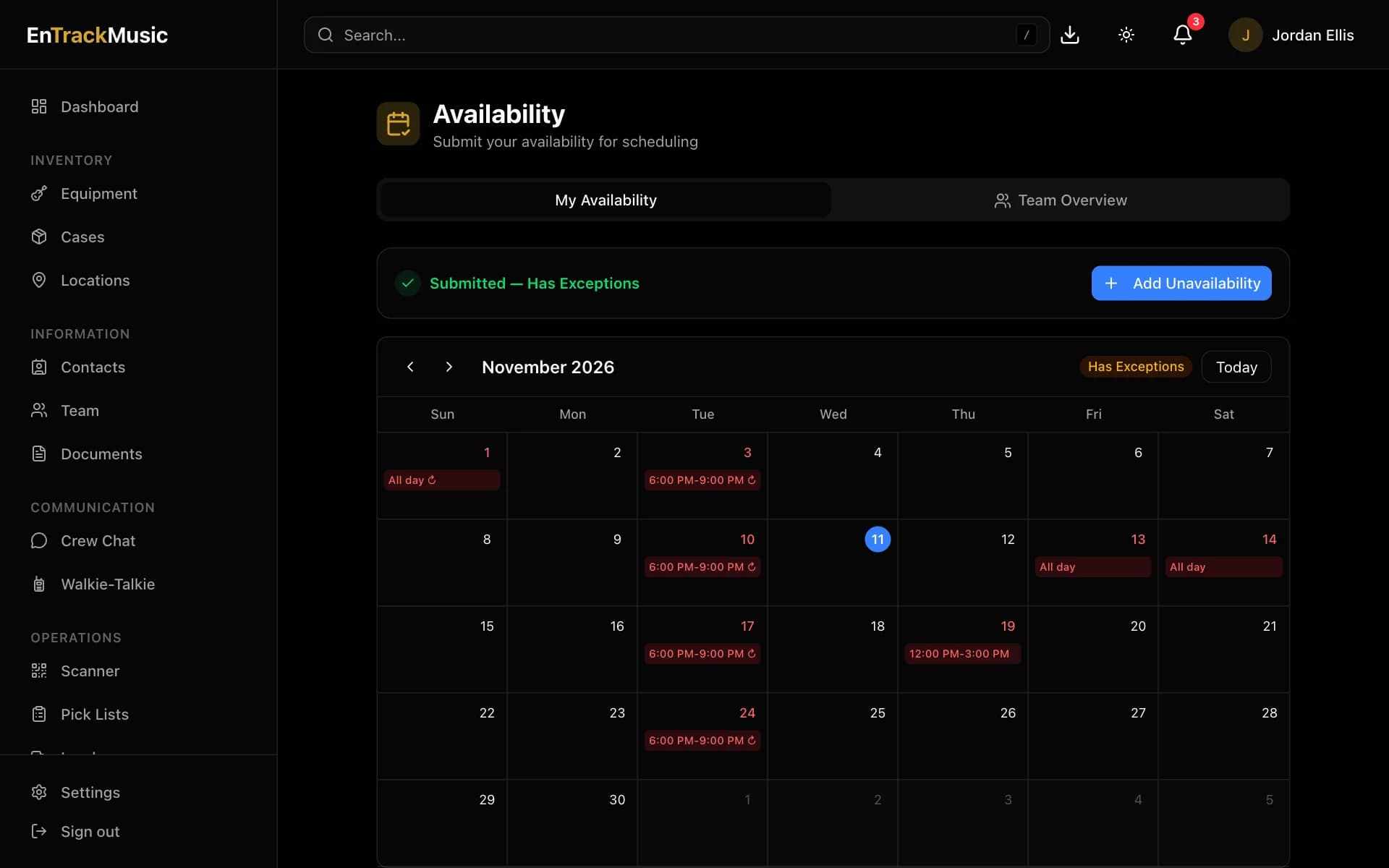
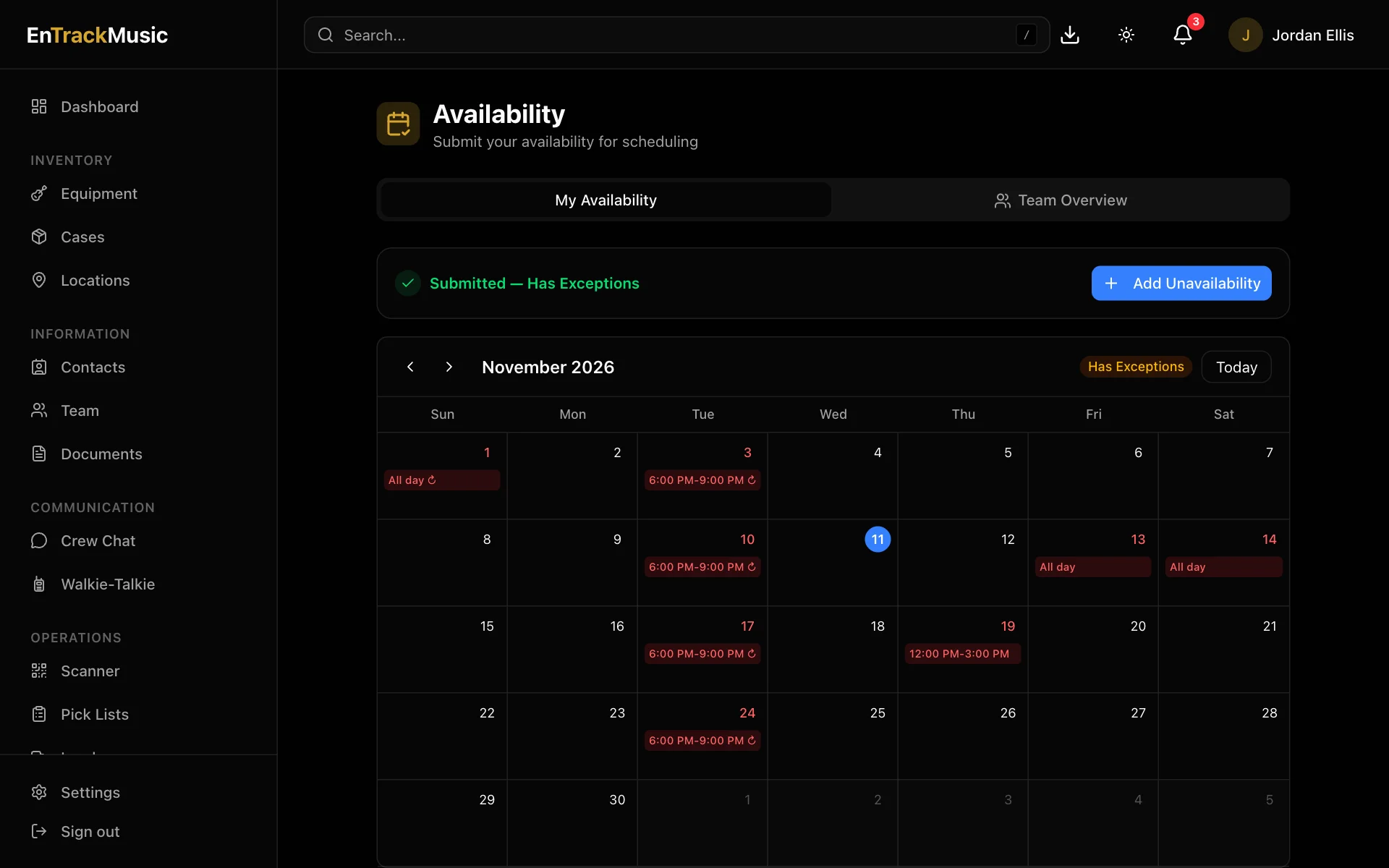
Adding an entry submits the month for you, with exceptions. Click an entry to change or delete it. To end a repeating entry, open it and use Series Options.
Submit for the month you're looking at: the calendar marks the month on screen, so move to the right month before adding entries.
Admins only
See who's free
Open the Team Overview tab and click a day. Everyone shows as Available, Partial Conflict, Unavailable or Not Submitted, with their times and notes. Monthly Submission Status below shows who has and hasn't submitted.
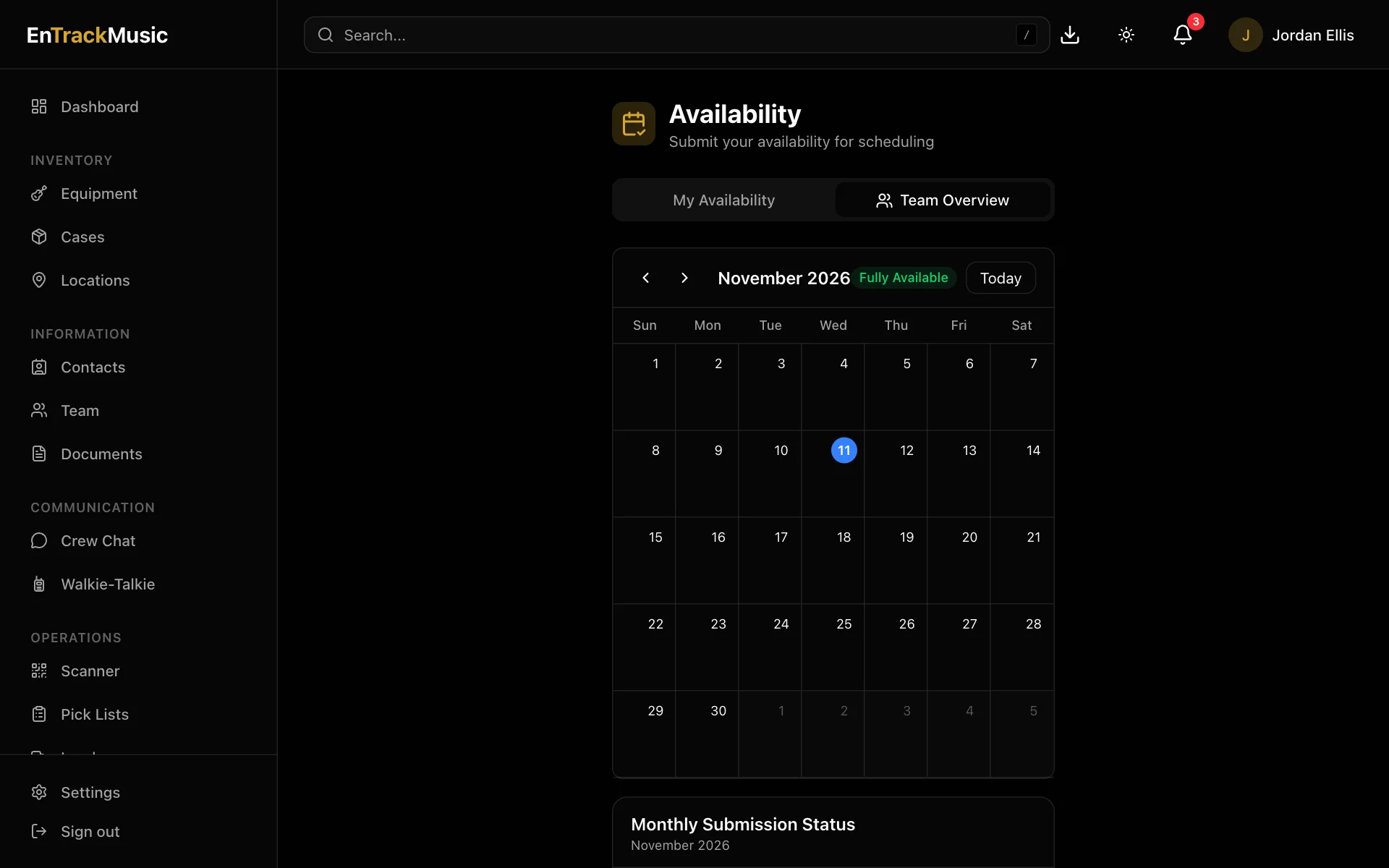
When you pick crew for an ops plan, the same statuses appear next to each name for the plan's date.
Set a deadline
Go to Settings → Organization and set Availability Deadline Day (1–28), plus a time and time zone if you like. Each month's deadline is for the next month. Anyone who hasn't submitted gets a reminder 3 days before, 1 day before and on the day, and a banner on their dashboard.
Still stuck? Contact us and we'll help.