Equipment
Add, find and organize instruments and gear, including bulk items like stands and chairs.
Equipment is every instrument and piece of gear you track: timpani, cellos, mics, music stands, chairs. Each item lives either in a case or at a location, so EnTrackMusic always knows where it is.
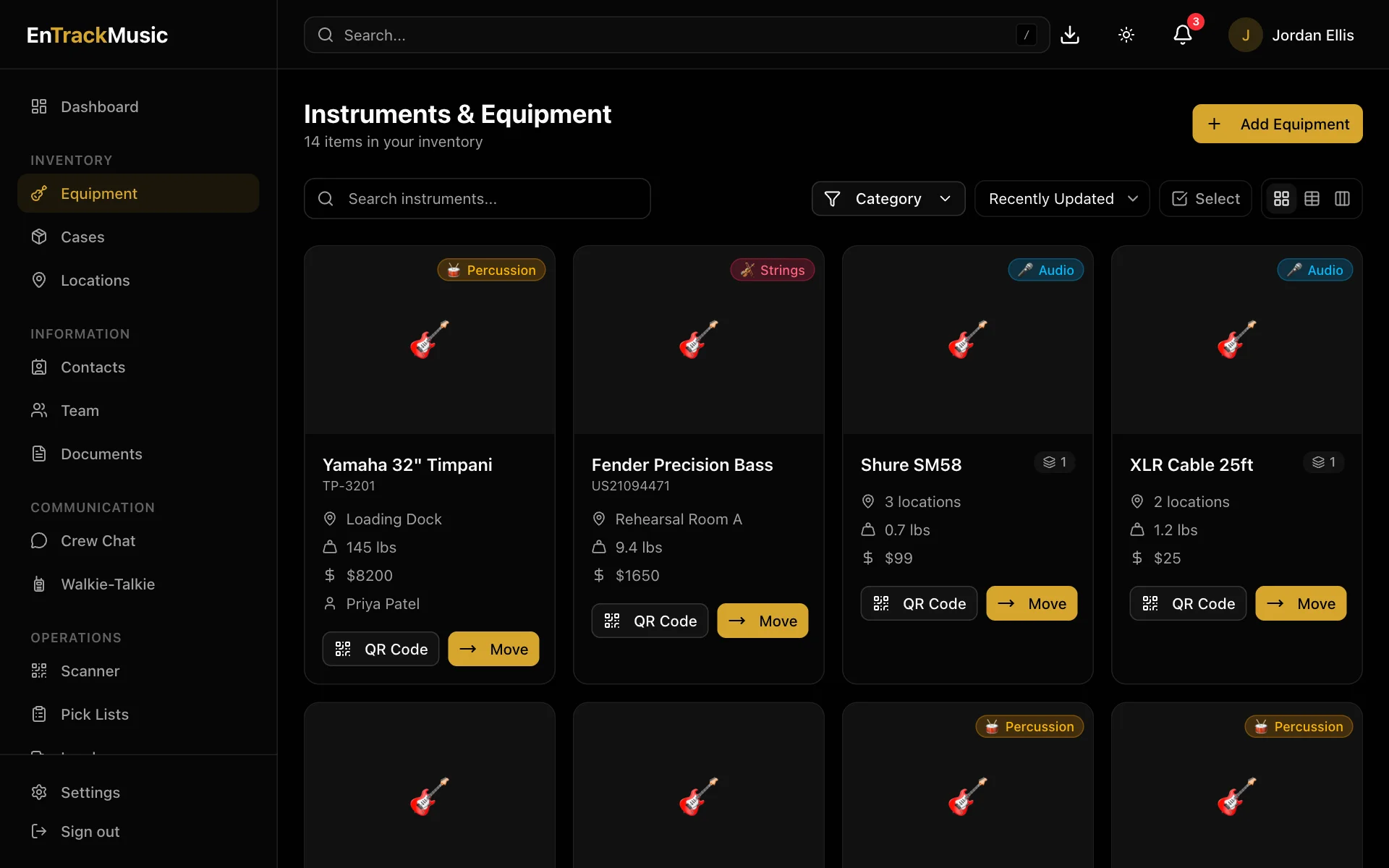
Browse your equipment
Go to Equipment. Search by name, serial number or category, filter by Category, and switch between card, table and board views. On a board you can group items by category, case or location.
Choose an item to see its details:
- Where it is: the case it's in, and the location that case is at.
- Specifications: category, serial number, weight, value and quantity.
- Assigned To: the team member or contact responsible for it.
- Documents, History and Comments.
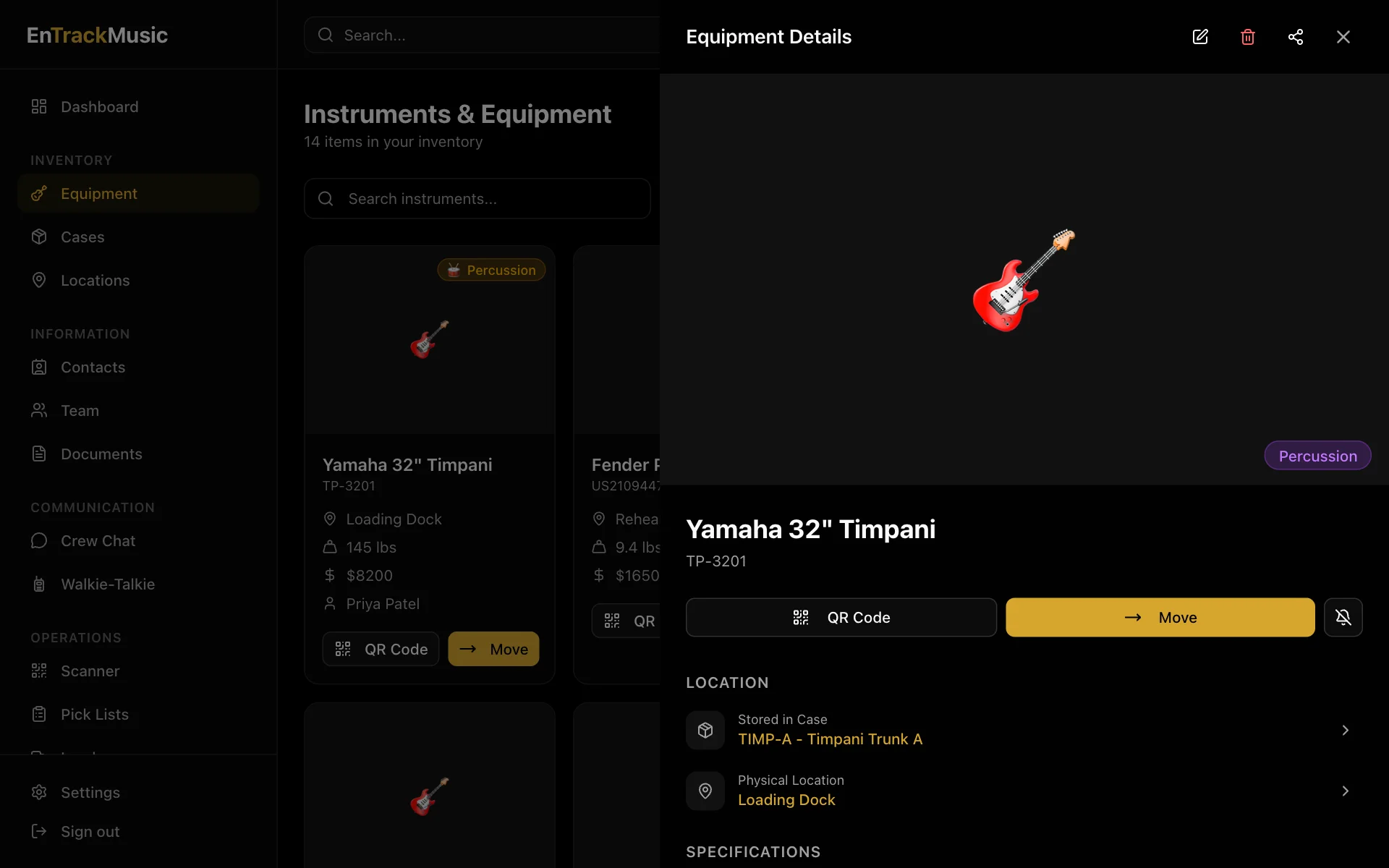
From an item you can show its QR Code, Move it (see Moving gear), or choose the 🔔 to follow it.
Two ways to track gear
- Serialized: each item is tracked on its own, like a particular cello with its serial number. Most instruments are tracked this way.
- Bulk: identical items tracked by count, like 60 music stands or 80 chairs. A bulk item has Stock by Location, which shows how many are where, and you move a number of them at a time.
Admins only
Add equipment
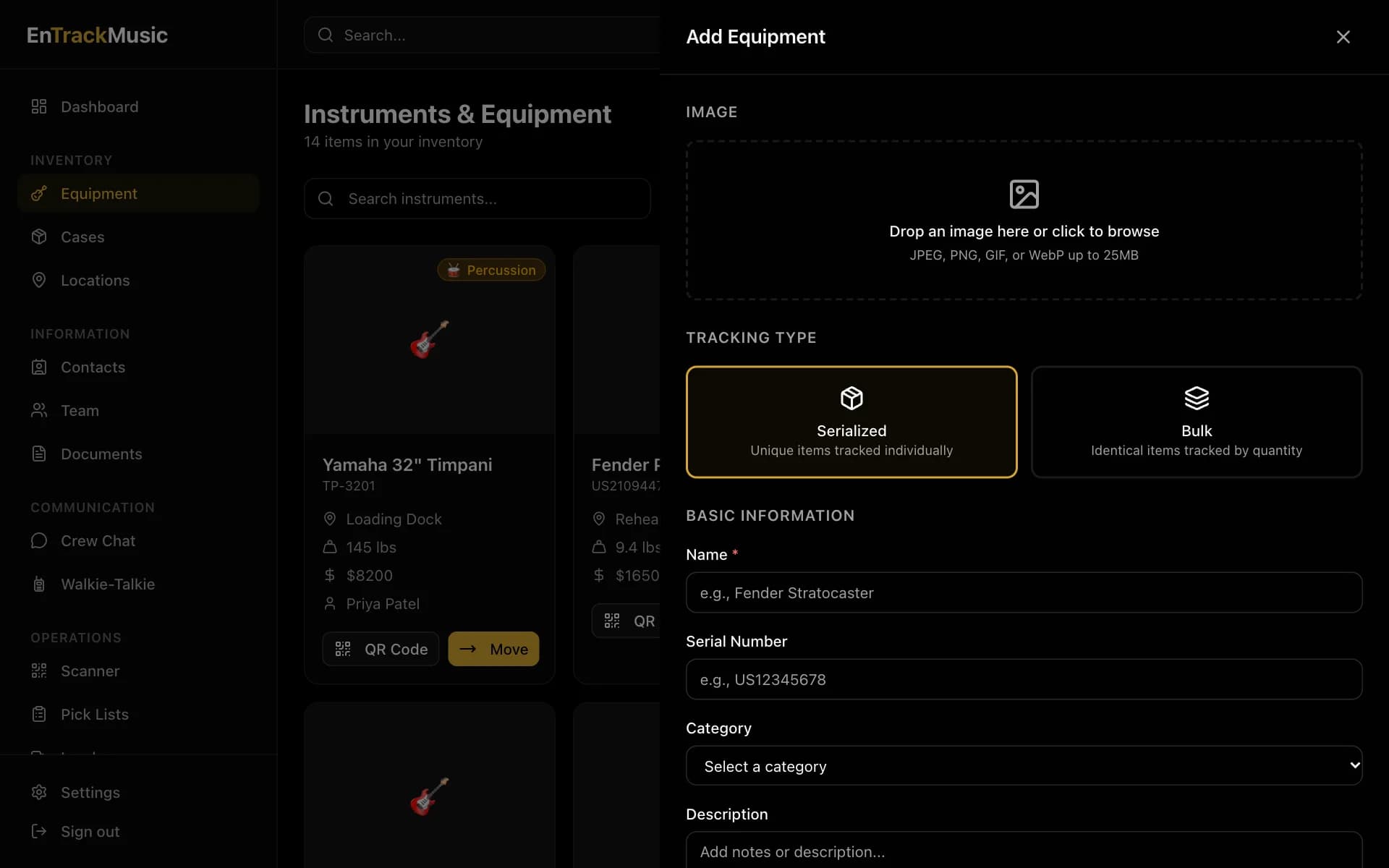
Choose Add Equipment
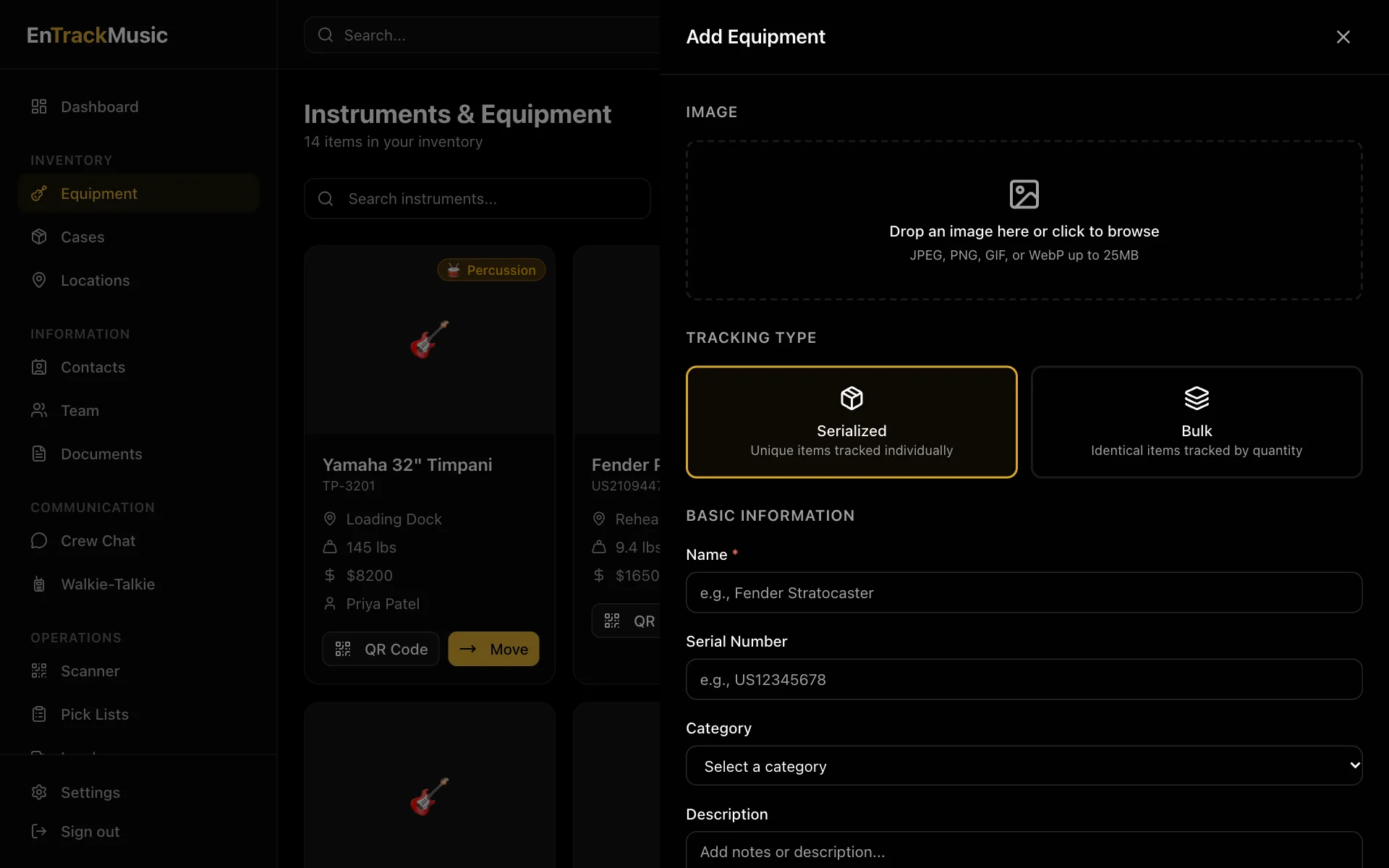
Choose Add Equipment and pick Serialized or Bulk. You can't change this later.
Fill it in
Only the name is required. Add a photo, category, serial number, description, weight and value to make manifests, insurance lists and search more useful.
Say where it is
For a serialized item, choose In a case or At a location. For a bulk item, enter how many are at each location under Initial Stock.
To change an item, open it and choose the pencil.
Bulk stock
Open a bulk item and choose Transfer to move some of it between locations, or Adjust to add or remove stock (for example, found, damaged or retired). Each change is recorded under Movement History.
Categories
Categories, each with an emoji and colour, are managed under Settings → Organization. See Organization settings.
Plan limits
Your plan sets how many equipment items and cases you can have in total. The form tells you when you're getting close.
Select several at once
Choose Select (or use the table's checkboxes) to select several items. Then you can:
- download them as a CSV spreadsheet,
- print Labels for them (see QR codes and labels),
- Move them all at once.
Admins can also Delete them, which moves them to the recycle bin for 30 days.
The footprint used on stage plots is set from the stage plot editor: resize the item there and choose Save size to item.
Still stuck? Contact us and we'll help.