QR codes and labels
Print QR labels on Avery sheets and scan them with the app.
Every piece of equipment, case and location has its own QR code. Put a label on each one, and anyone on your team can scan it to see what it is, where it belongs, or to move it.
Print labels
Select what to label
On Equipment, Cases or Locations, choose Select and tick the items. Select one item to print just its label.
Choose Labels
Choose Labels in the toolbar.
Pick a label sheet
Choose the Avery sheet you have:
Sheet Size Per sheet Avery 5160 Address labels 30 Avery 5164 Shipping labels 6 Avery 5126 Shipping labels 2 For the larger labels, choose portrait or landscape. Set how many copies of each label you need.
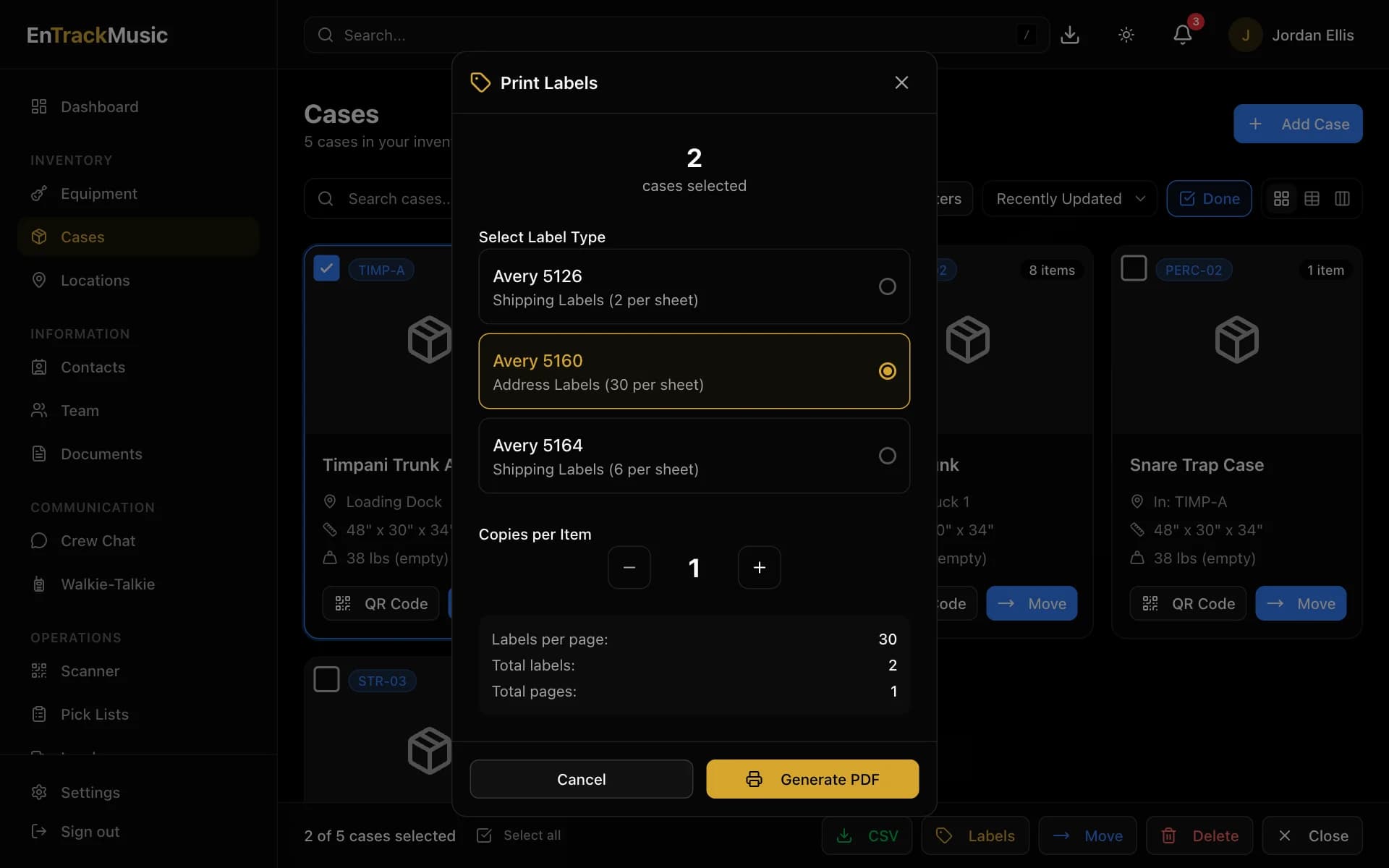
Generate the PDF
Choose Generate PDF and print it at 100% (actual size). Each label has the QR code, the item's name, and on larger labels its short code or serial number, plus your organization's logo.
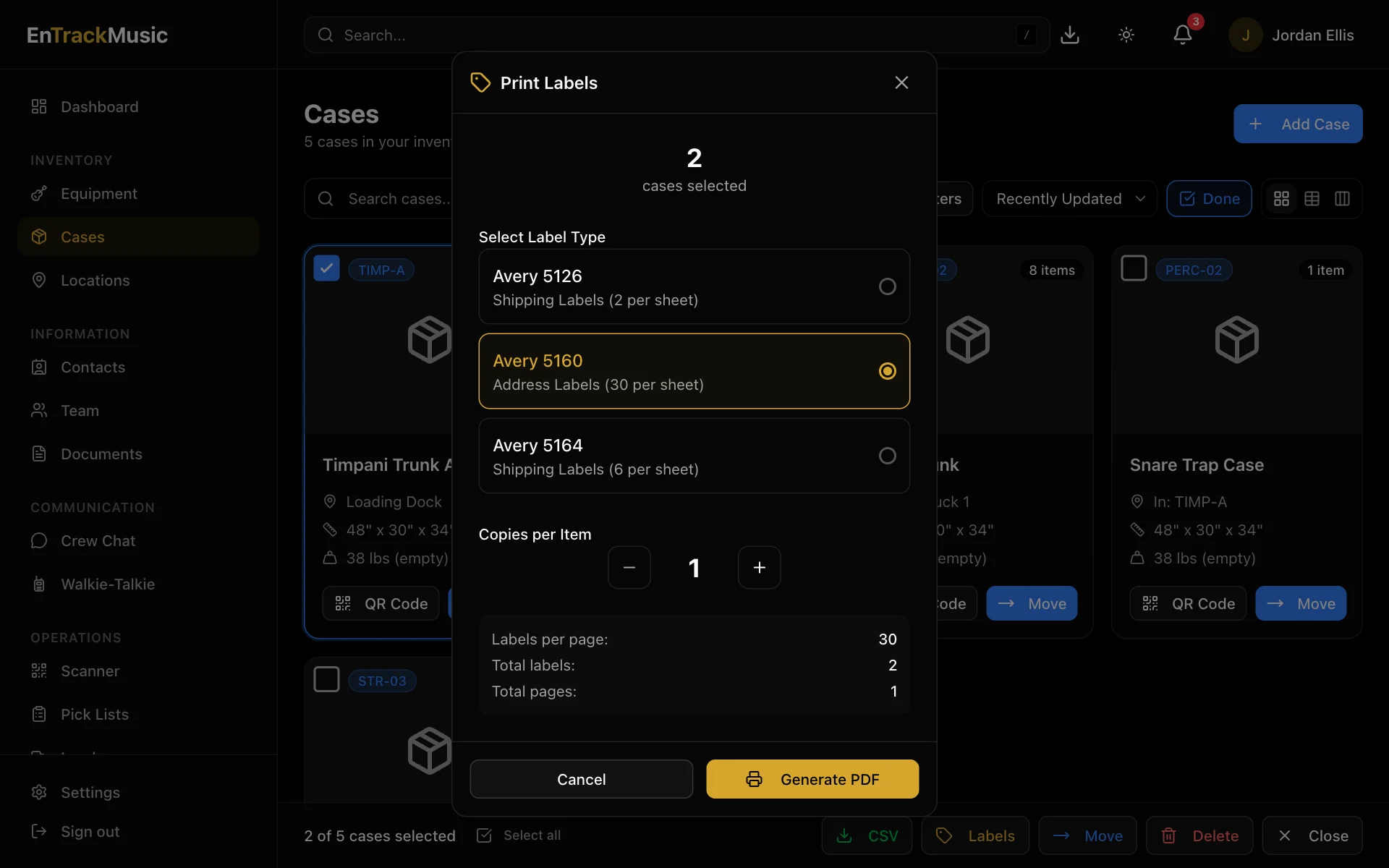
Use the big 5126 labels for road cases and trucks, which get scanned from a distance. Use 5160 labels for instruments and small cases.
Show or save one code
Open any item and choose QR Code. You can scan it straight off the screen, or choose Download to save it as an image.
Scan a label
Scan labels with the scanner in EnTrackMusic: choose Scanner in the menu, or the scan button in the iPhone or Android app. See Moving gear.
Still stuck? Contact us and we'll help.