Locations
Buildings, rooms and trucks, with addresses, maps and what's at each one.
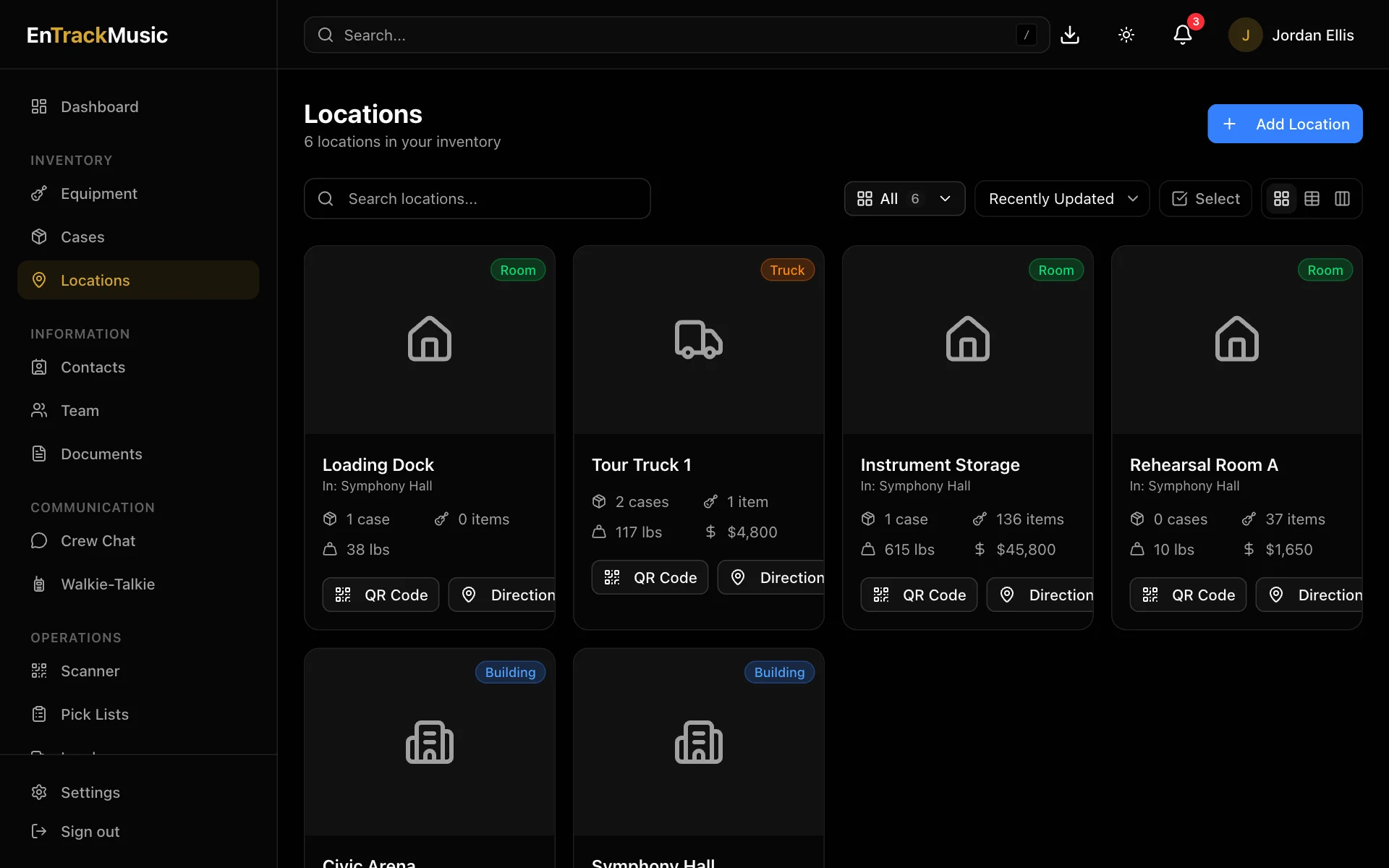
Locations are the places gear can be. There are three kinds:
- Buildings: your hall, warehouse, rehearsal space or a venue, with an address and map.
- Rooms inside a building: the stage, the loading dock, instrument storage.
- Trucks: anything that moves, with an origin and destination address.
Browse locations
Go to Locations. Filter by Buildings, Rooms or Trucks, or search by name. The board view shows each building with its rooms.
Open a location to see:
- its address and map, with Directions to open it in Google Maps;
- Stats: how many cases and items are there, and their total weight and value;
- Rooms & Areas inside a building;
- Contents: every case and loose item there;
- Documents, History and Comments.
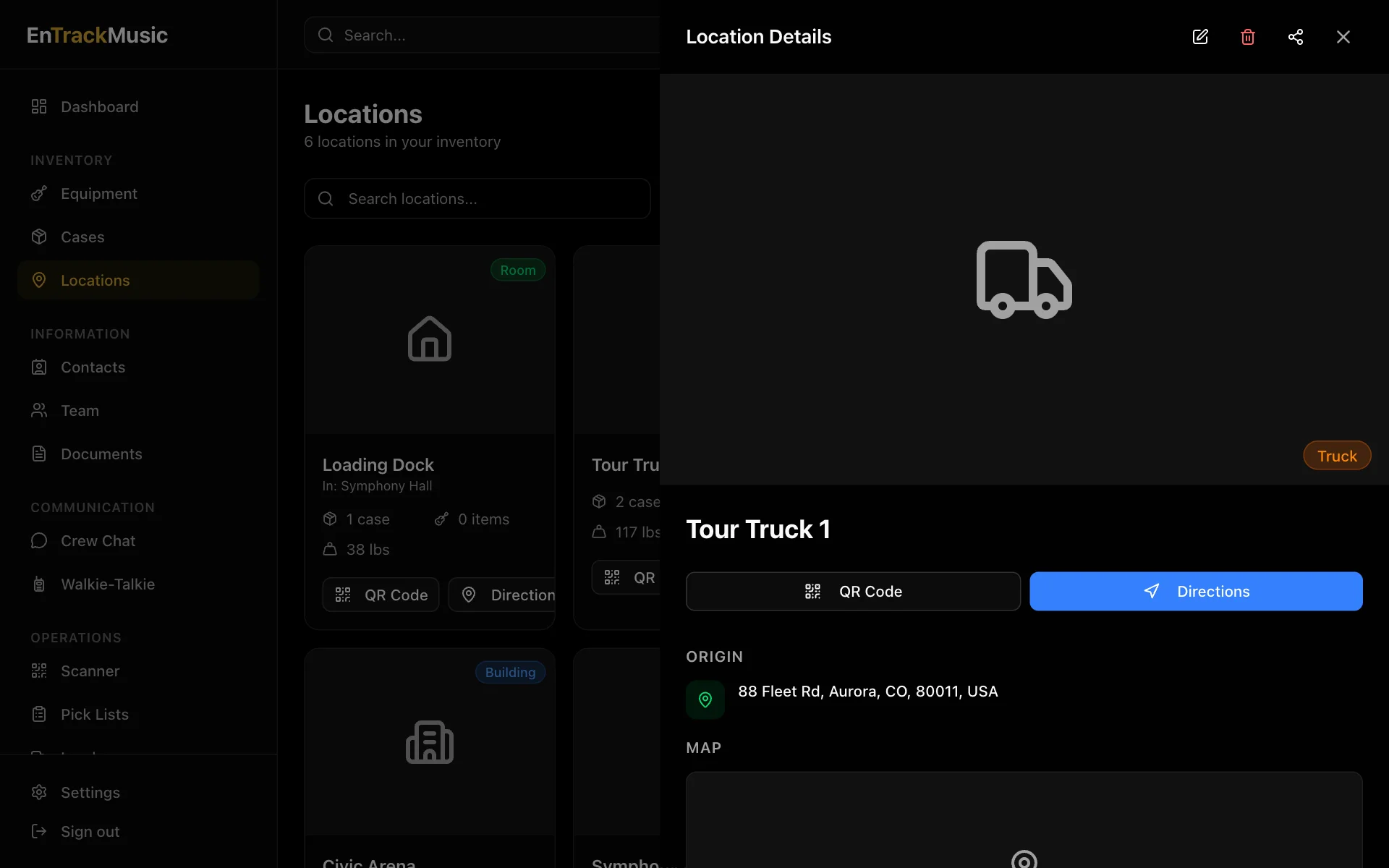
Each location has a QR code too. Stick it by the door, and crew can scan it to see what's there or to confirm a load's destination.
Admins only
Add a location
Choose Add Location
Choose Add Location and pick Building, Room or Truck.
Fill it in
For a building, search for its address to fill in the details. For a room, choose its Parent Building; it uses the building's address. For a truck, add where it's coming from and where it's going.
There's no limit on how many locations you can have.
Shipping manifests
Print a truck's manifest from a load going to it: open the load, choose ⋯ and then Print Manifest. Fill in the origin and destination and choose Generate PDF. See Running a load.
Still stuck? Contact us and we'll help.