Documents
Procedures, checklists and files, linked to the gear they're about.
The document library keeps your procedures, checklists, venue notes and files in one place, linked to the gear they're about. Open a case and its packing checklist is right there. Open a procedure and see every case it applies to.
Documents need the Pro plan or higher.
Browse the library
Go to Documents. Folders are on the left. All Documents shows everything, and each folder shows just its own. Search matches document titles, checklist items and file names.
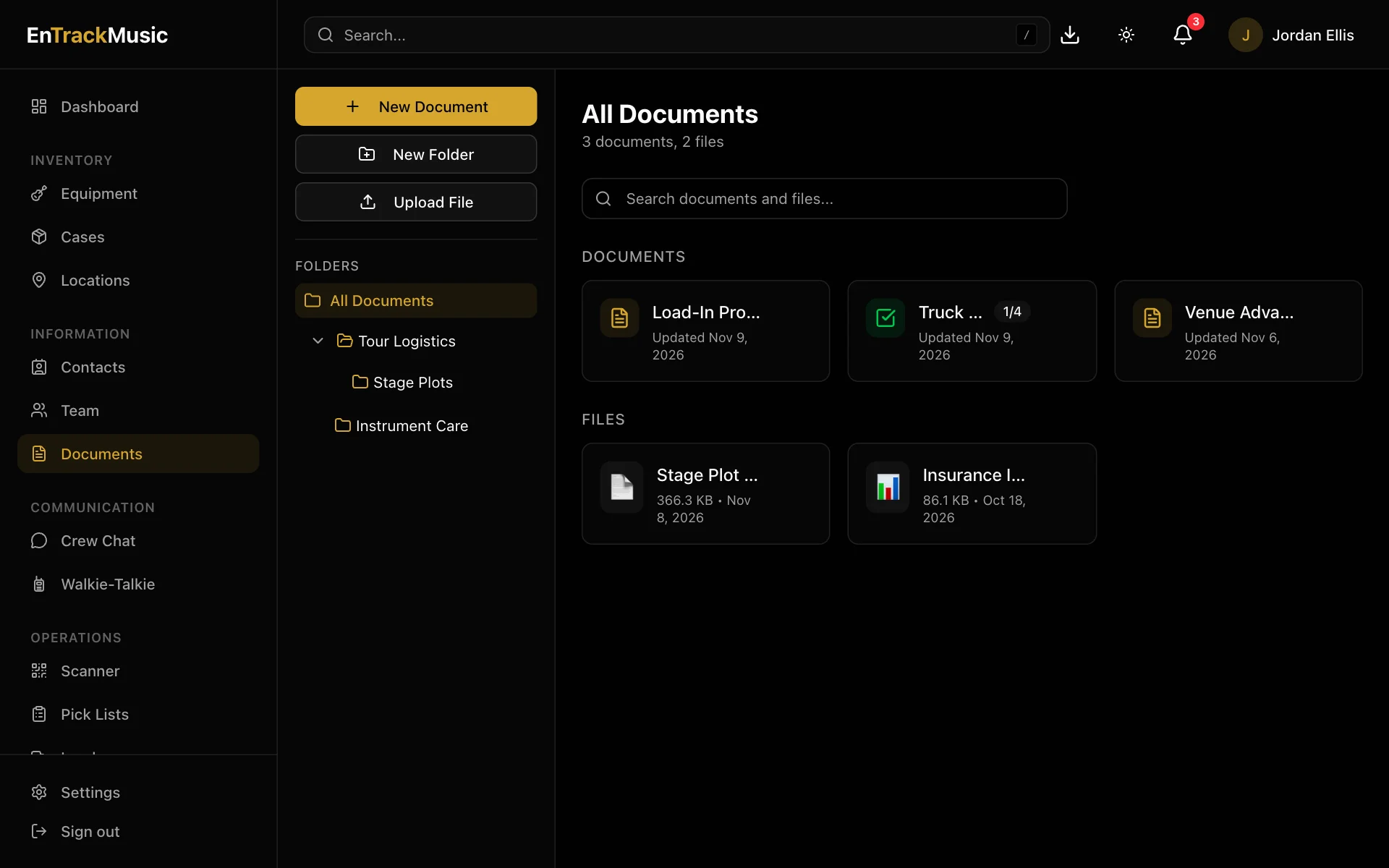
There are three kinds of things in the library:
- Rich text documents: procedures, notes and guides, with headings, lists, quotes, links and images.
- Checklists: items to tick off, with optional section headers and an assigned person for each item.
- Files: PDFs, Word, Excel, PowerPoint, text and CSV files, up to 50 MB. PDFs and images preview right in the page.
Work through a checklist
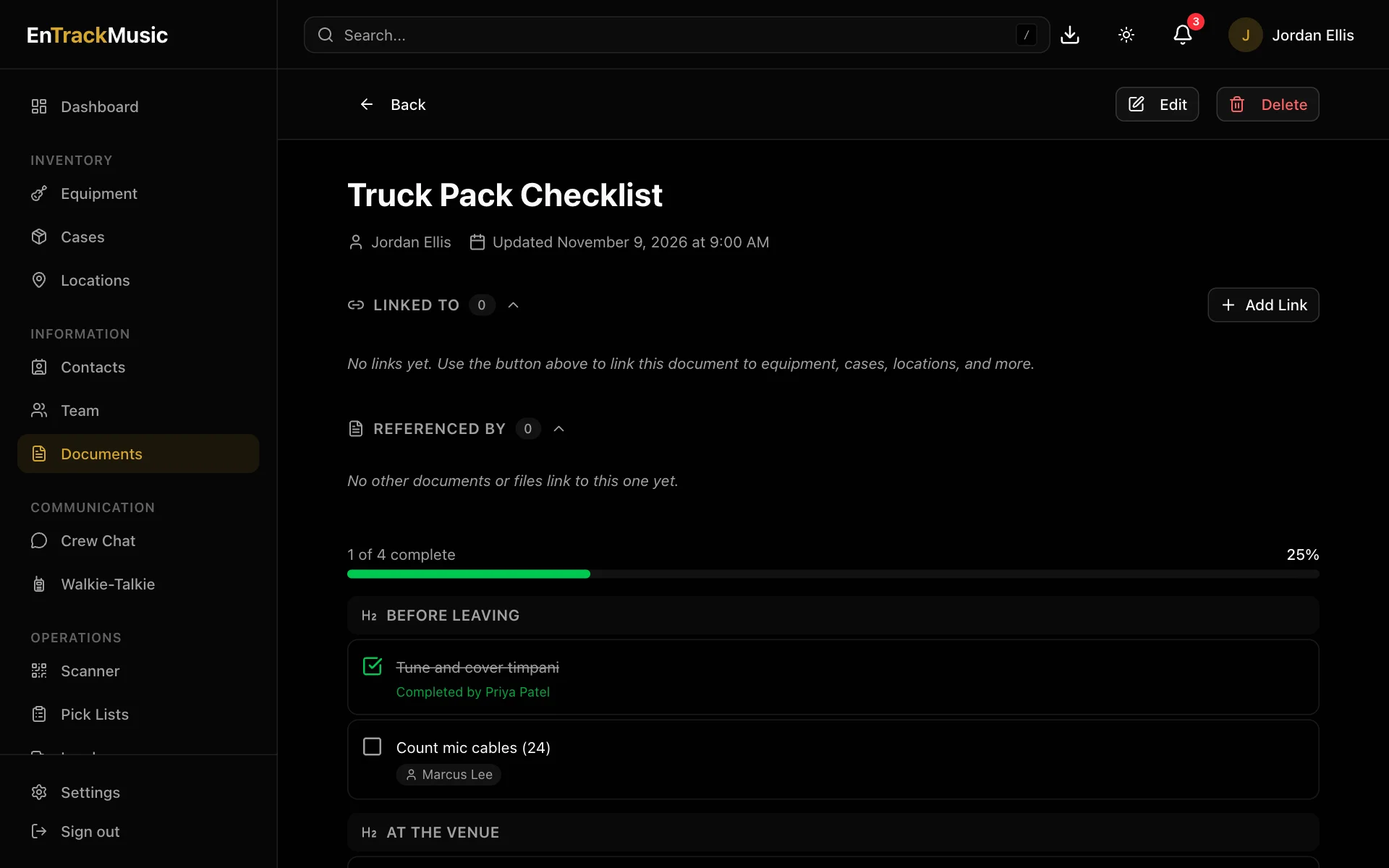
Open a checklist and tick items as you go. Everyone sees the progress, and each finished item shows who did it. If an item's assigned to you, you'll get a notification.
Admins only
Create a document
Start it
Choose New Document, pick Rich Text or Checklist, give it a title and choose Create. It's created in the folder you have open.
Write it
Use the toolbar for bold, italic, headings, lists, quotes, links and images. You can also type shortcuts:
#for a heading,-for a bullet,1.for a numbered list,>for a quote. For a checklist, type each item and choose +, or the heading button for a section header.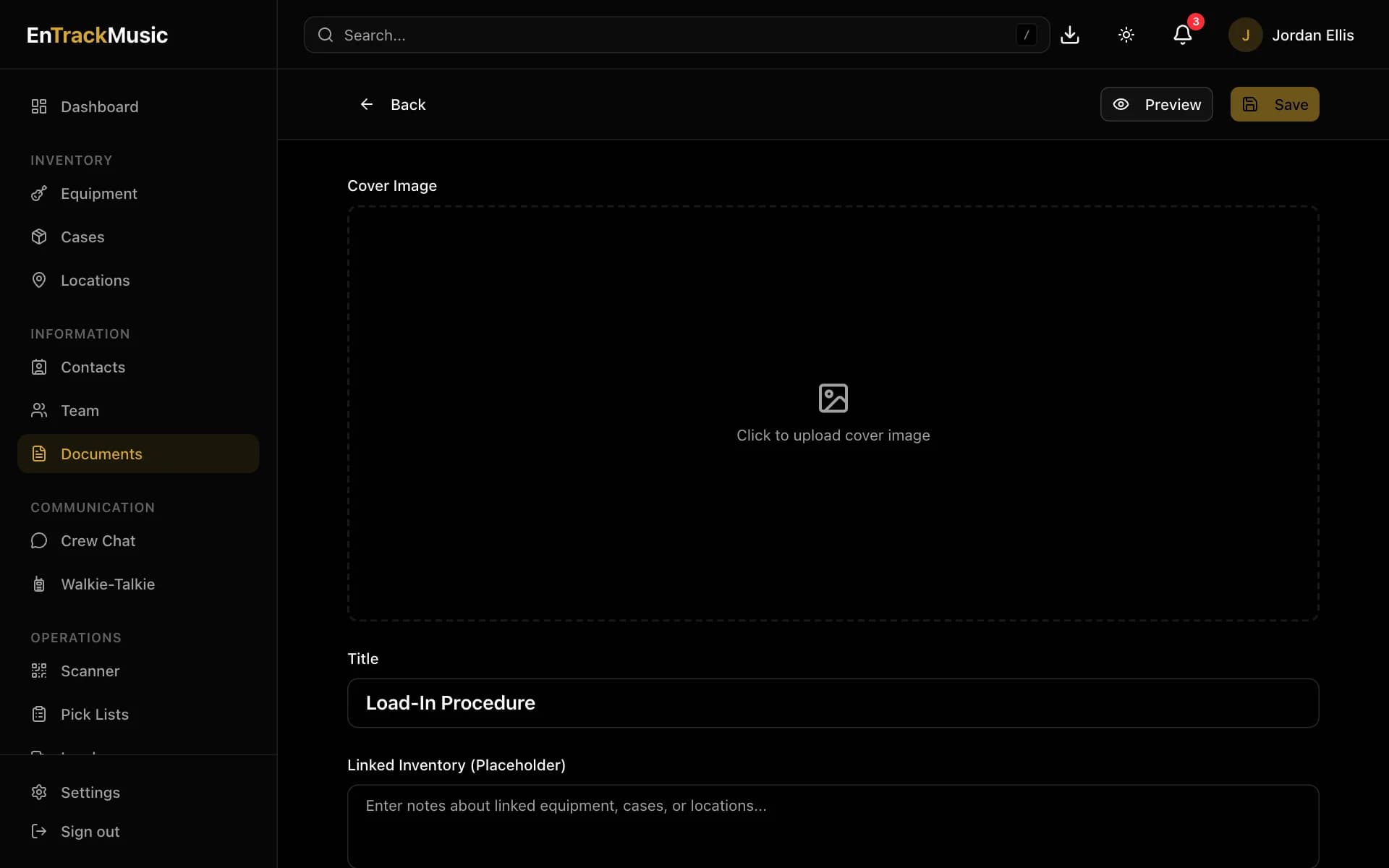
Save it
Choose Save. Documents don't save automatically, and you'll be warned before leaving with unsaved changes. Add a cover image at the top if you like.
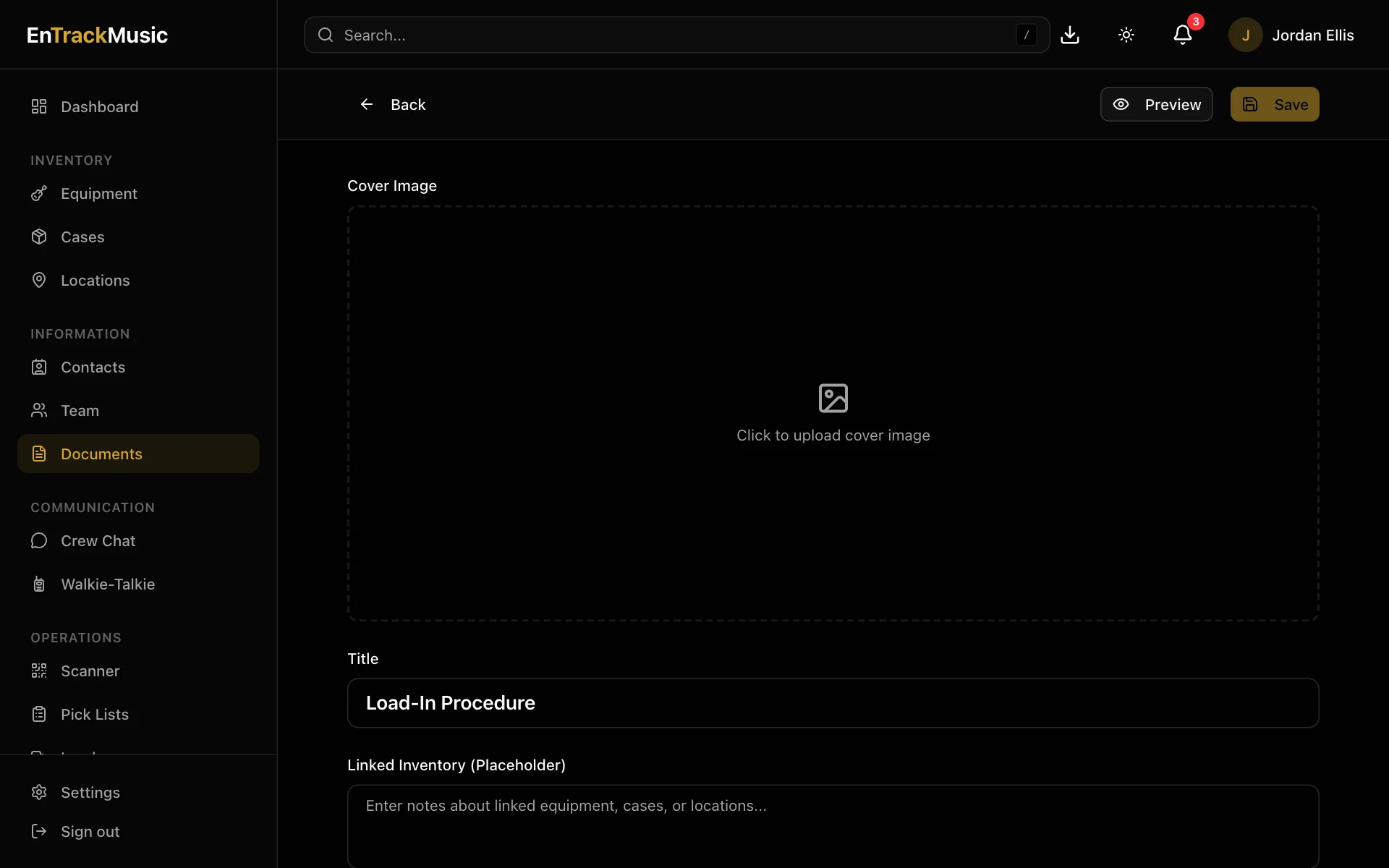
Choose Upload File to add a file, and New Folder to organize things. Folders can have subfolders.
Link documents to gear
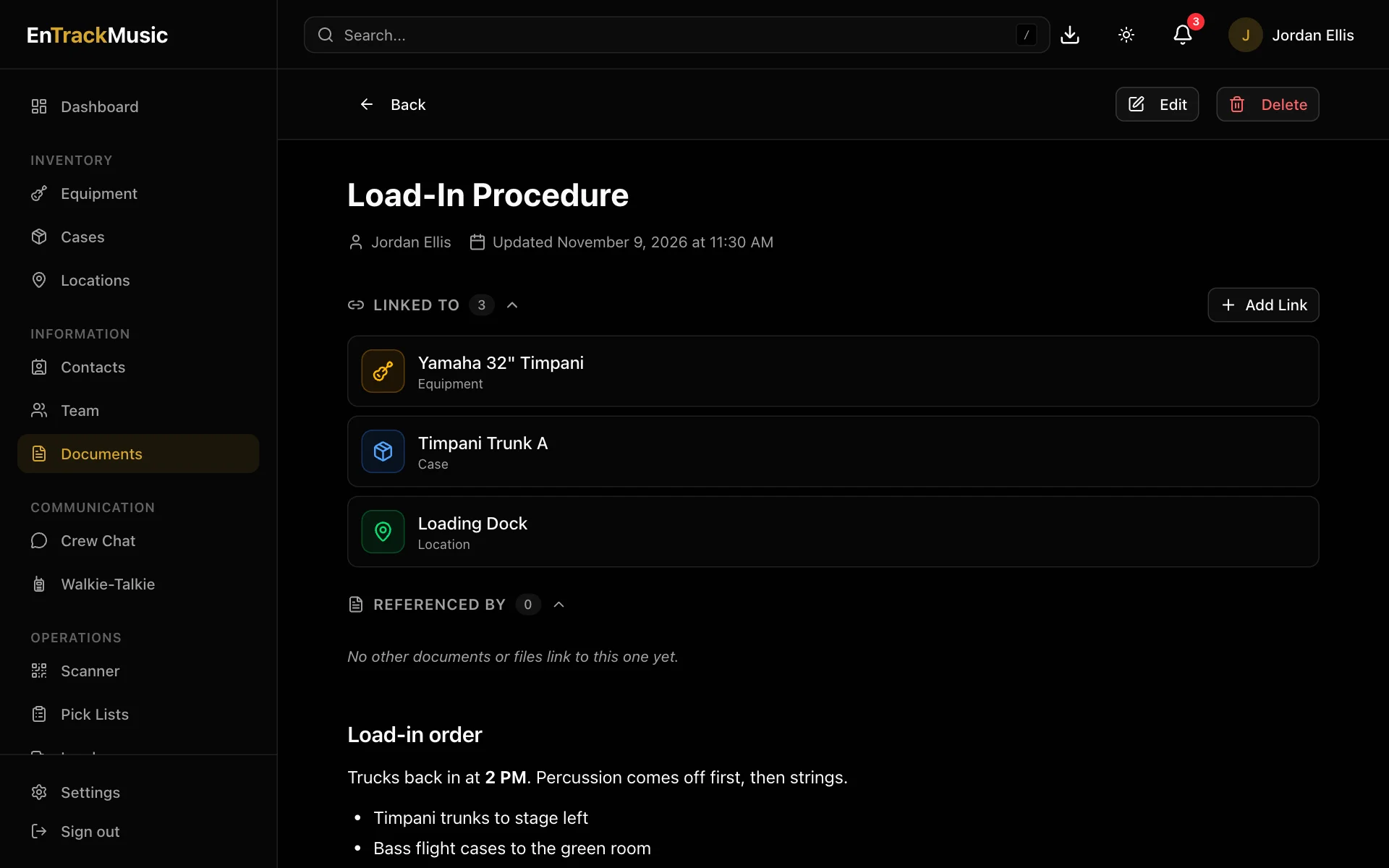
Open a document or file and choose Add Link under Linked To. Search for equipment, cases, locations, contacts, pick lists, loads or other documents, and choose each one to link it. The document then appears under Documents on each of those items. Referenced By shows other documents that link to this one.
Ops plans attach documents differently: add them on the plan's Files tab, or to a role so the right person gets them. See Ops plans.
Admins only
Delete and restore
Deleting a document, file or folder moves it to the recycle bin for 30 days. Restore it from Settings → Recycle Bin. A folder has to be empty before you can delete it.
Still stuck? Contact us and we'll help.